
User Plan Change
The User-Level Plan Change feature allows authorized administrators to change the subscription plan assigned to an individual user without changing the plan for the entire organization
The following users can change a user's plan:
- Account Owner
- Organization Admins assigned the Billing Admin permission
Steps to Change a User's Plan
- Navigate to the "Users" page in Settings
- Click on the plan of the respective user in the "Plan" column
- Choose the plan from the dropdown
- Click on 'Request Change"
- Select the Requests tab
- Locate the plan change request and click the Actions icon
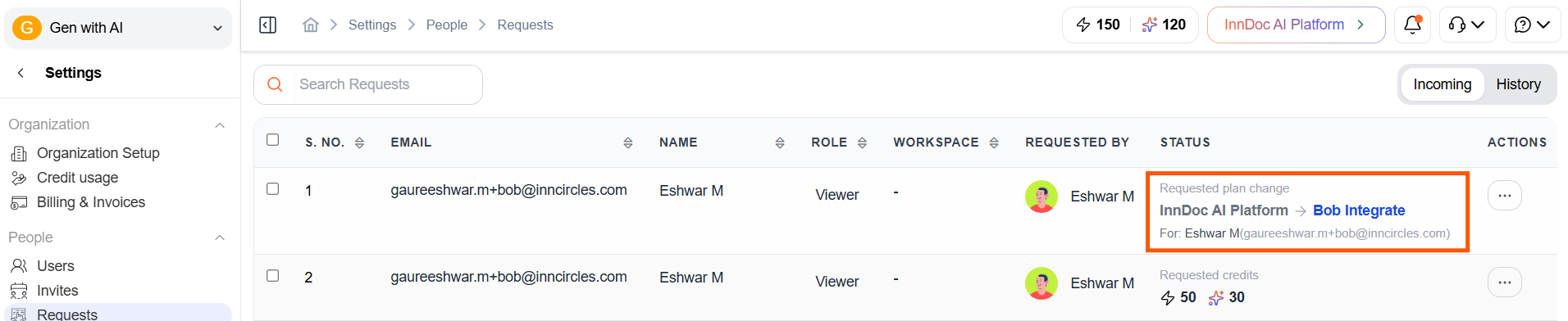
- Choose Accept or Reject
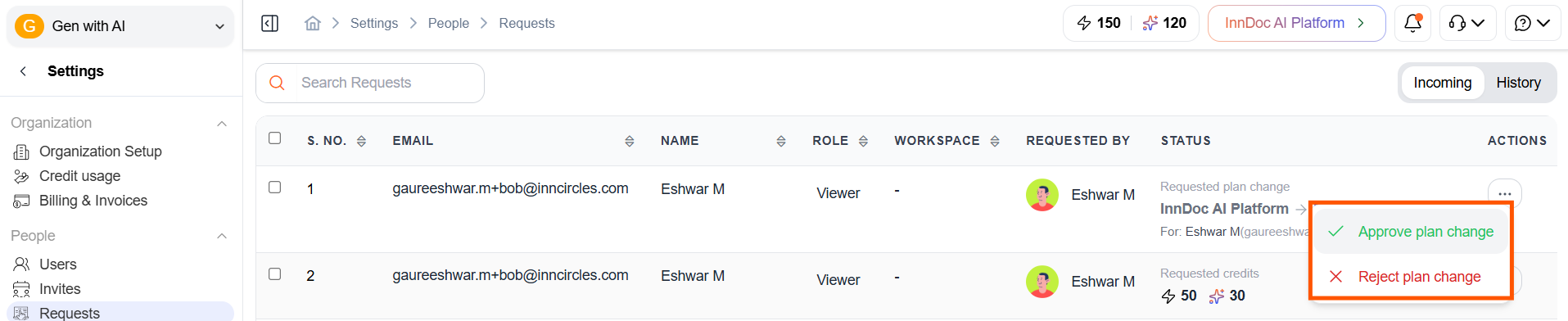
- Select Accept to proceed with the plan change, or Reject to decline the request.
- If the request is accepted, you will be redirected to the Payment page.
- Review the payment details carefully and complete the payment.
- Once the payment is successfully completed, the plan change will be reflected
Updated about 2 months ago
Did this page help you?