
Knowledge Mapping
Overview
Knowledge Mapping allows users to associate files and knowledge bases with specific document types so that whenever you work on a document of that type, the relevant references are automatically available. This eliminates repetitive linking and ensures consistency across projects and questionnaires.
Location: Settings → Repository → Knowledge Mapping
Supports mapping single or multiple knowledge bases/files to a document type.
Only Super Admins, Org Admins, and Workspace Admins can access the Knowledge Mapping tab.
Adding / Mapping Knowledge
To map files or knowledge bases to a document type:
-
Select a Document Type from the left-hand panel.
-
Click Map
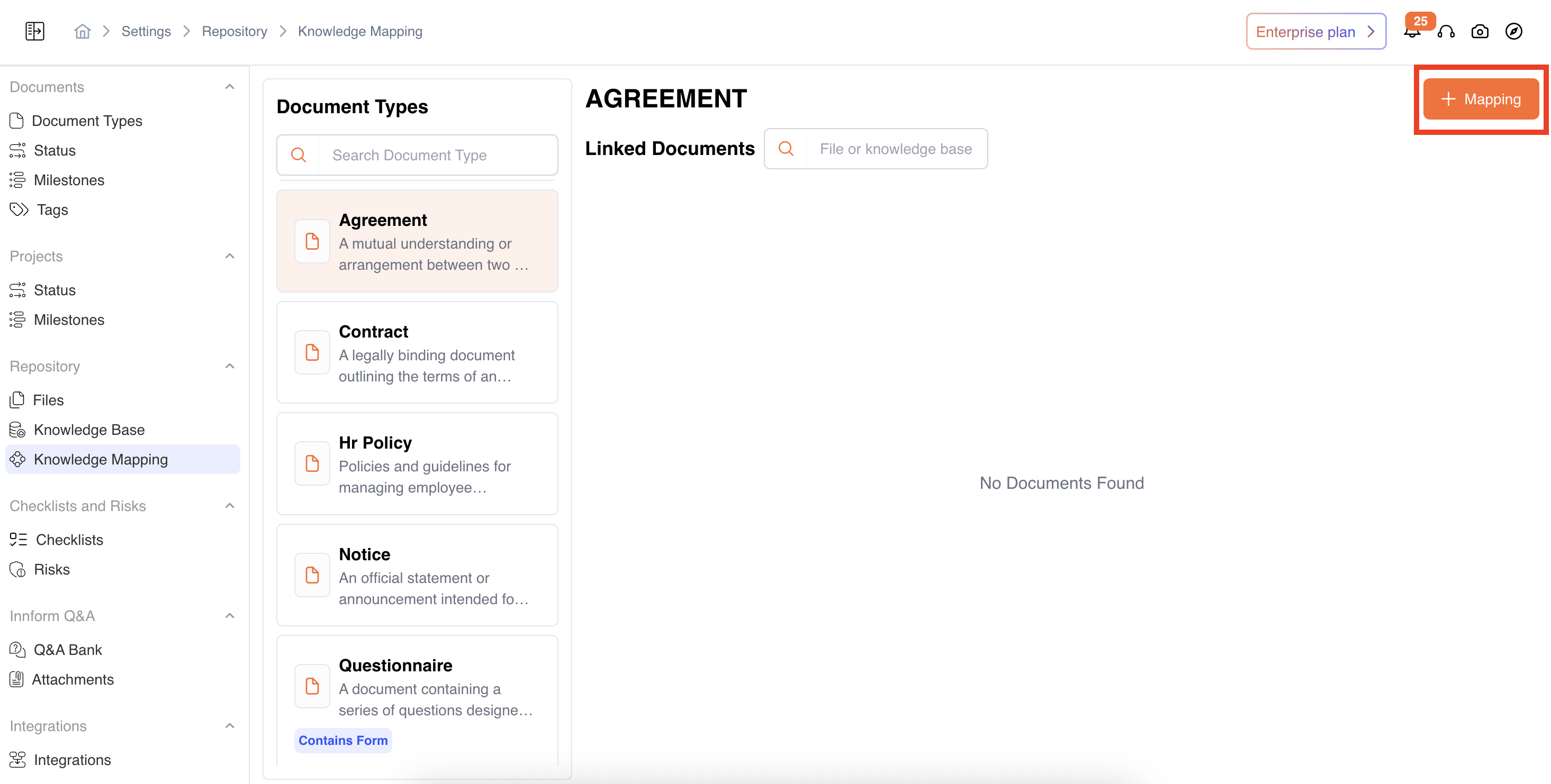
-
Choose the knowledge bases and/or files you want to associate. Multiple knowledge bases and files can be linked to a single document type.
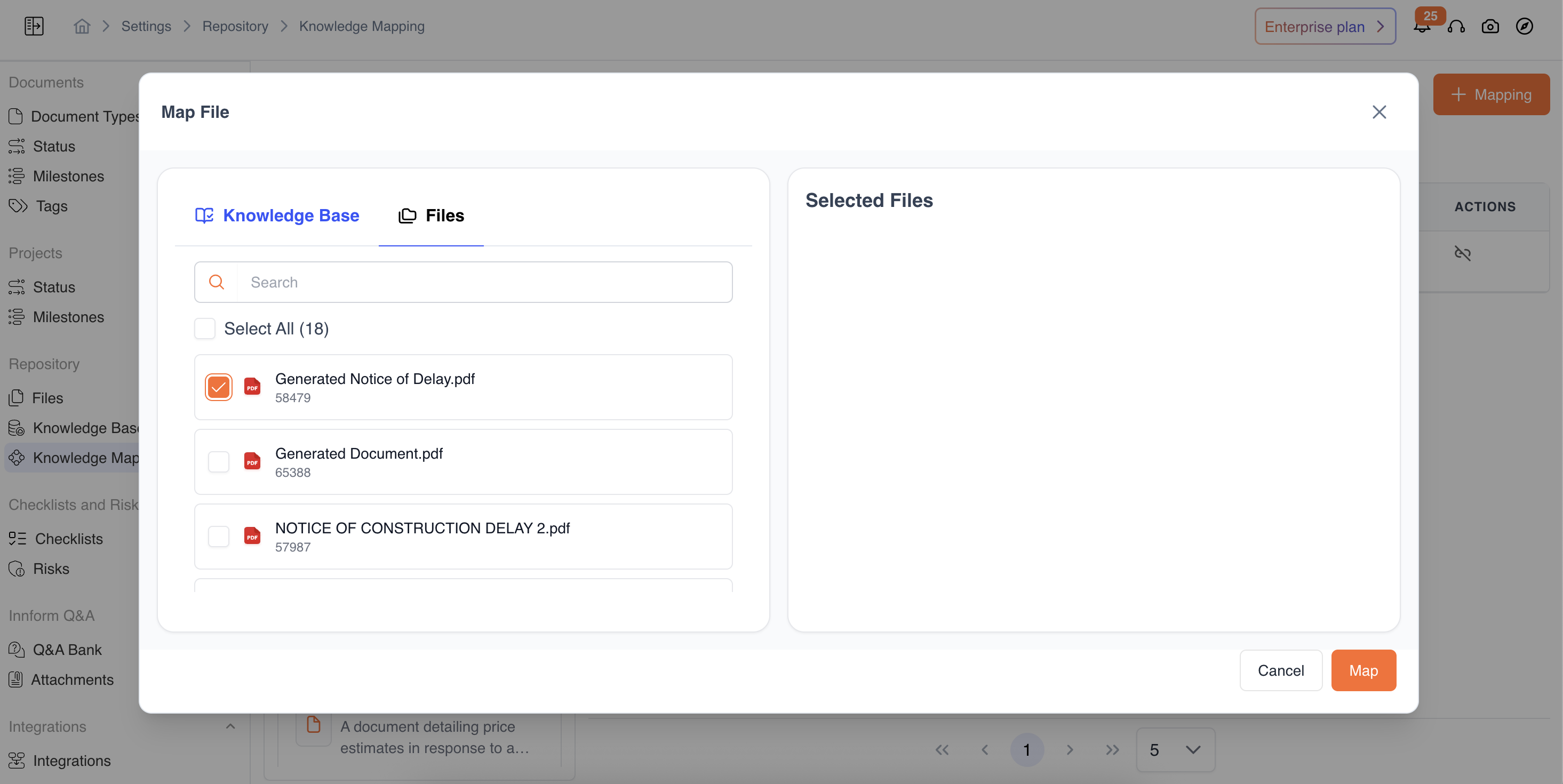
-
Click Save/Map to apply the changes.
-
Once mapped, these items appear automatically whenever a document of this type is used.
Viewing Mappings
Once items are mapped:
- Select a Document Type to see all linked files
- Details displayed include:
- Document/Knowledge Base Name
- File Names
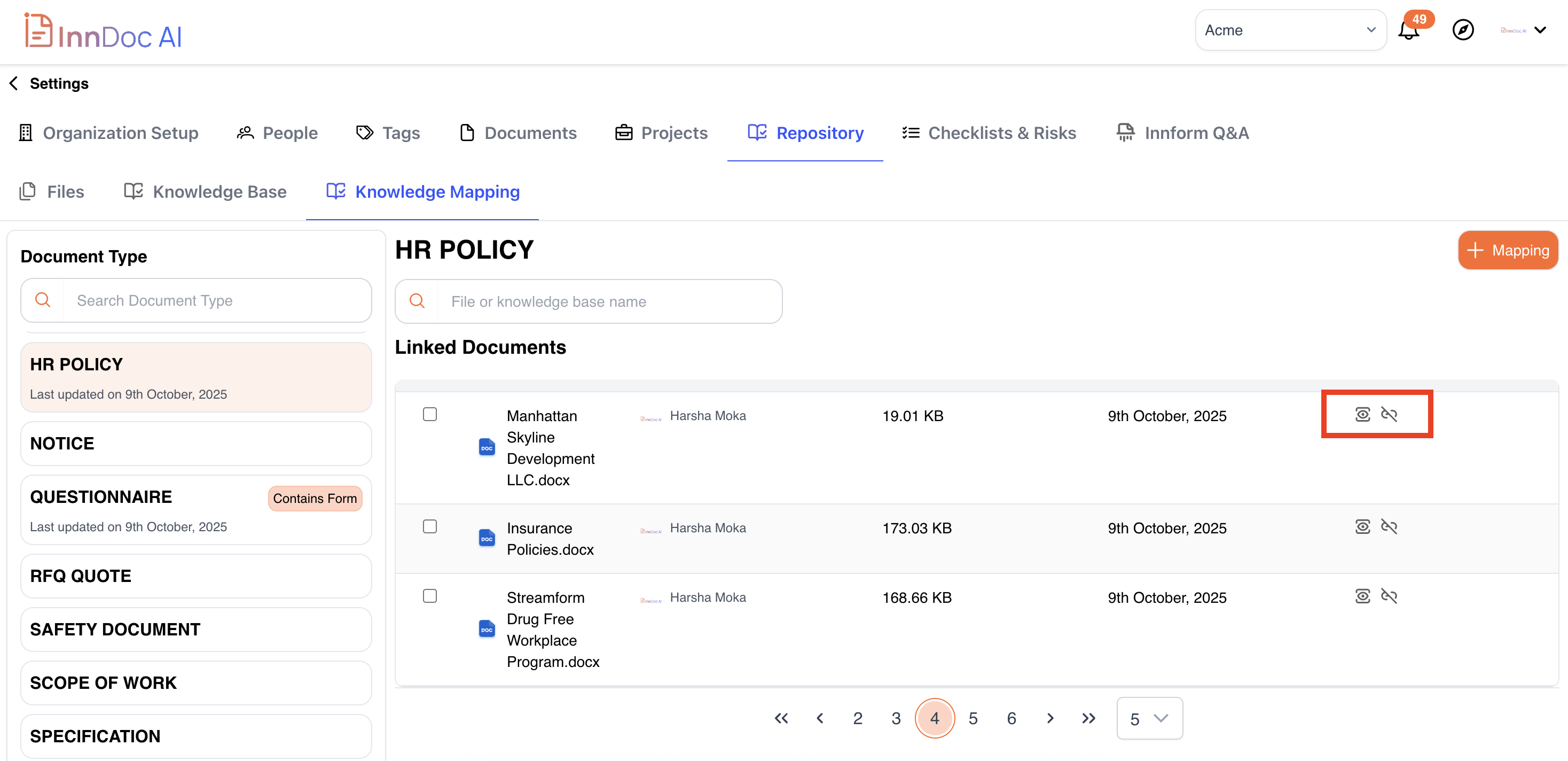
Actions available for each mapped item:
- View – Preview the file or knowledge base.
- Delink – Remove it from this document type mapping (item remains in repository).
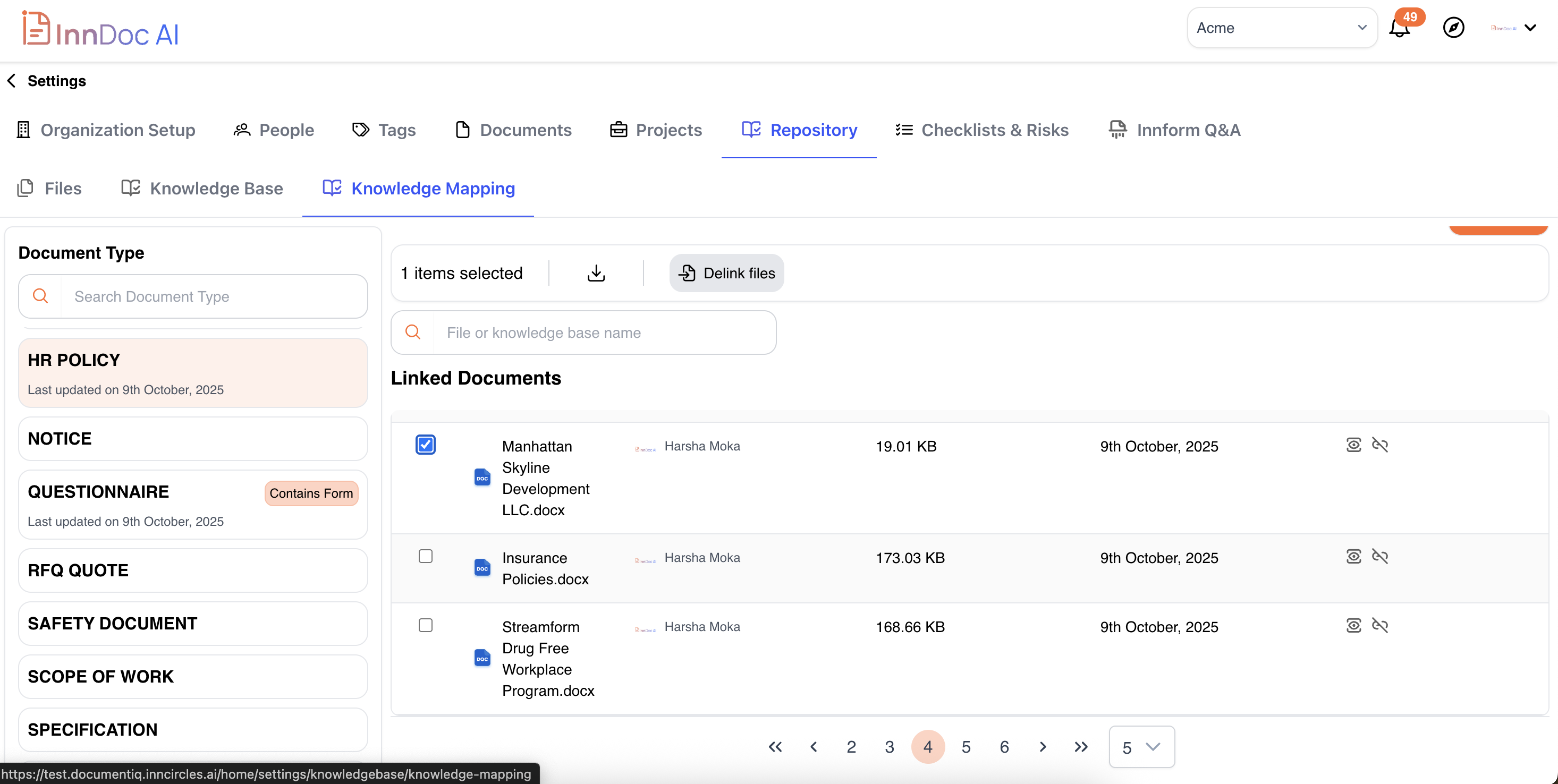
- Download - Download the respective files, when
**Bulk Actions **
Updated 12 months ago