
Questionnaire Actions & Controls
Innform provides a variety of actions for each question in a questionnaire to help your team collaborate, review, and manage answers efficiently.
-
Flag:
-
Mark a question or answer that requires attention or review.
-
Flagged items are highlighted for quick identification.
-
Useful for tracking issues or questions that need follow-up.

-
-
Assign:
-
Assign a question to a team member for review or completion.
-
Click the Assign icon and select a user-> Save
-
The assignee is notified and the question shows under their Assigned to Me filter.
-
Reassigning overrides previous assignments.

-
-
Watch
-
Follow a question to receive updates about changes or comments.
-
Click the Watch icon (eye) to subscribe.
-
The icon turns blue when you are watching the question.
-
Stop watching anytime by clicking the icon again.

-
-
Add to Q/A Bank
-
Save answers for future reuse.
-
Click Add to Q/A Bank to store the answer in your central library.

-
-
Source
-
View where the answer came from.
-
Shows the origin of the response, whether from Knowledge Base, Q/A Bank, or uploaded documents.
-
For Q/A Bank answers, the original question is displayed.
-
Ensures traceability and helps maintain compliance.

-
-
Retry Answer
-
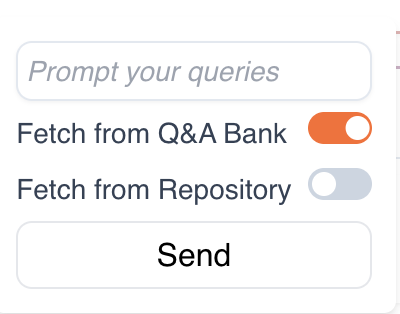
You can retry the answer using one of the following sources:
-
Q&A Bank: Fetches previously approved answers from your Q&A repository.
-
Knowledge Base / Repository: Uses the selected knowledge base documents to provide an updated answer.
-
AI Prompt: Allows you to refine the answer by prompting AI with your instructions or corrections.

-
-
Ask AI
-
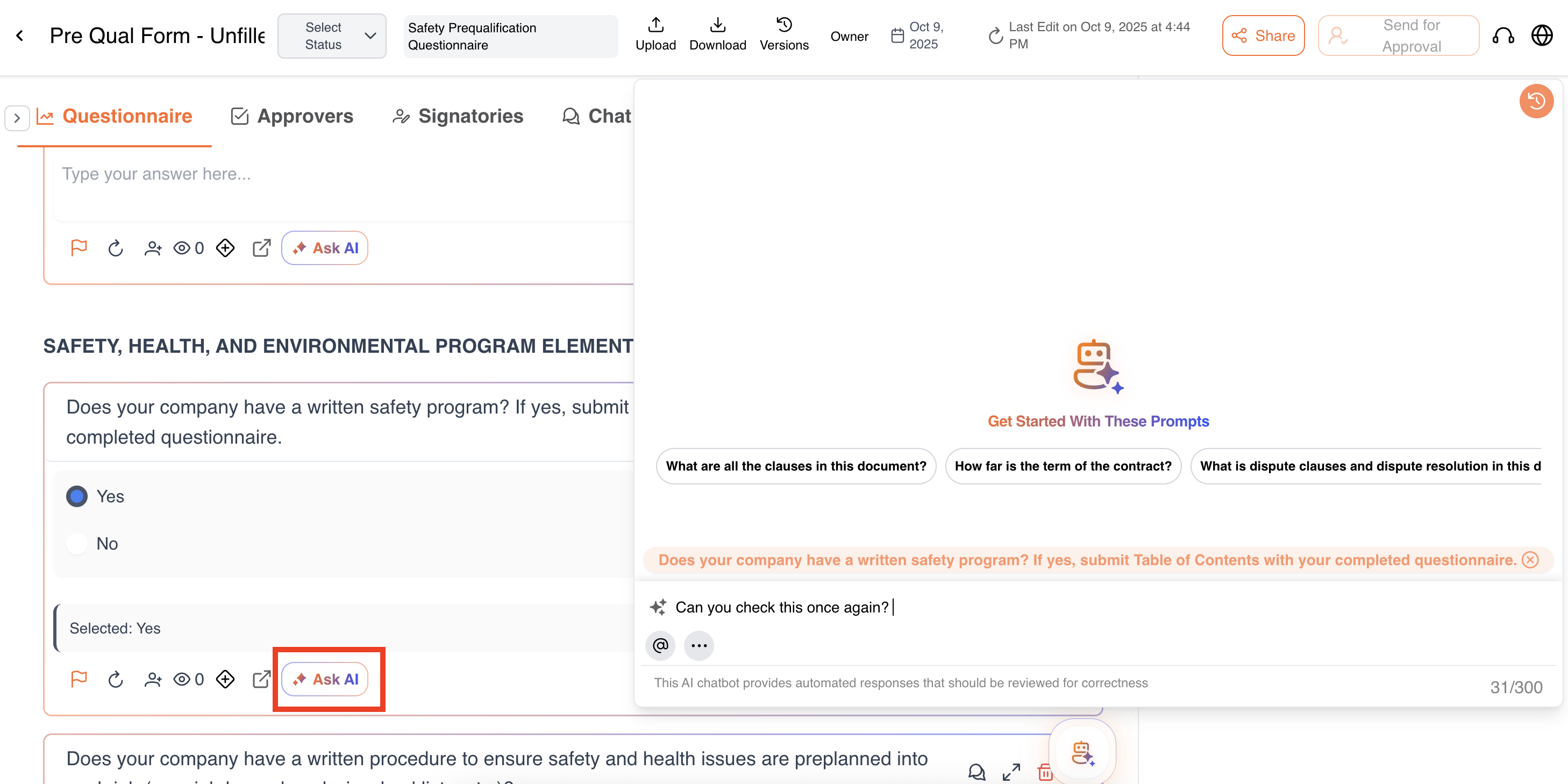
Interact with the AI to generate or refine answers.
-
The question appears in a non-editable format in the chat interface.
-
You can prompt AI to adjust tone, format, or content.
-
AI can pull information from internal sources or optionally search the web.
-
Chat history is saved for reference, and you can edit, rename, or copy responses.
-
-
Approve
-
Mark an answer as final and ready for use.
-
Only document owners and editors can approve.
-
-
Reject
-
Mark an answer as unsatisfactory.
-
Click Reject and add a comment explaining the reason.
-
The question is flagged for revision and requires updates.
-
-
Comment
-
Collaborate with your team through threaded comments. Supports @mentions and timestamps.
-
Use comments to provide feedback, ask clarifying questions, or suggest edits.

-
-
History
- Track all changes, edits, and approvals for a question.
- Displays timestamps, editor details, and approval/rejection actions.
-
Delete
- Remove a question or answer permanently.
- Click Delete and confirm the action.
- Deleted items cannot be recovered, so use carefully.

- Bulk Actions (Section-wise): Perform actions on multiple questions at once to save time. Available bulk actions include:
-
Flag multiple questions for review
-
Delete selected items
-
Assign to a user (overrides previous assignments if needed)
-
Approve multiple answers at once
-
Add to Q/A Bank for bulk storage or updates
-
Retry Answer to regenerate or fetch new responses from AI or sources

-
TIps
Use Flag and Comments for collaboration instead of chat to maintain clear records.
Only approve answers after verifying accuracy and compliance.
Use Bulk Actions for efficiency on large questionnaires.
Always check Sources to ensure traceability and accountability.
Updated 9 months ago