
Files
Overview
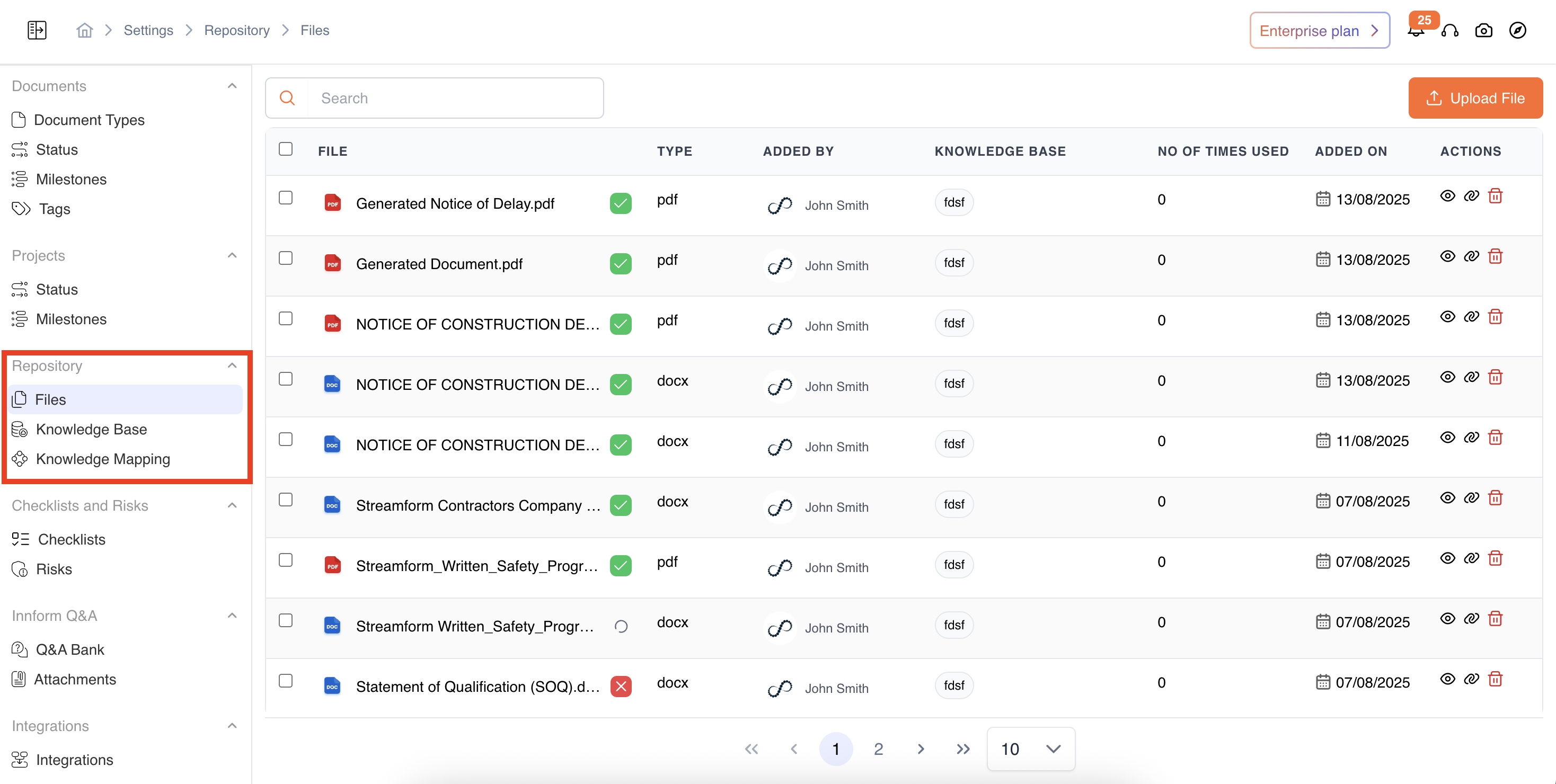
The Files section allows you to view, manage, and upload documents associated with your projects and workspaces. It provides visibility on usage, source, and linked Knowledge Bases, while also offering quick actions to manage your documents efficiently.
Only Super Admins, Org Admins, and Workspace Admins can access the Files tab.
Viewing Files**
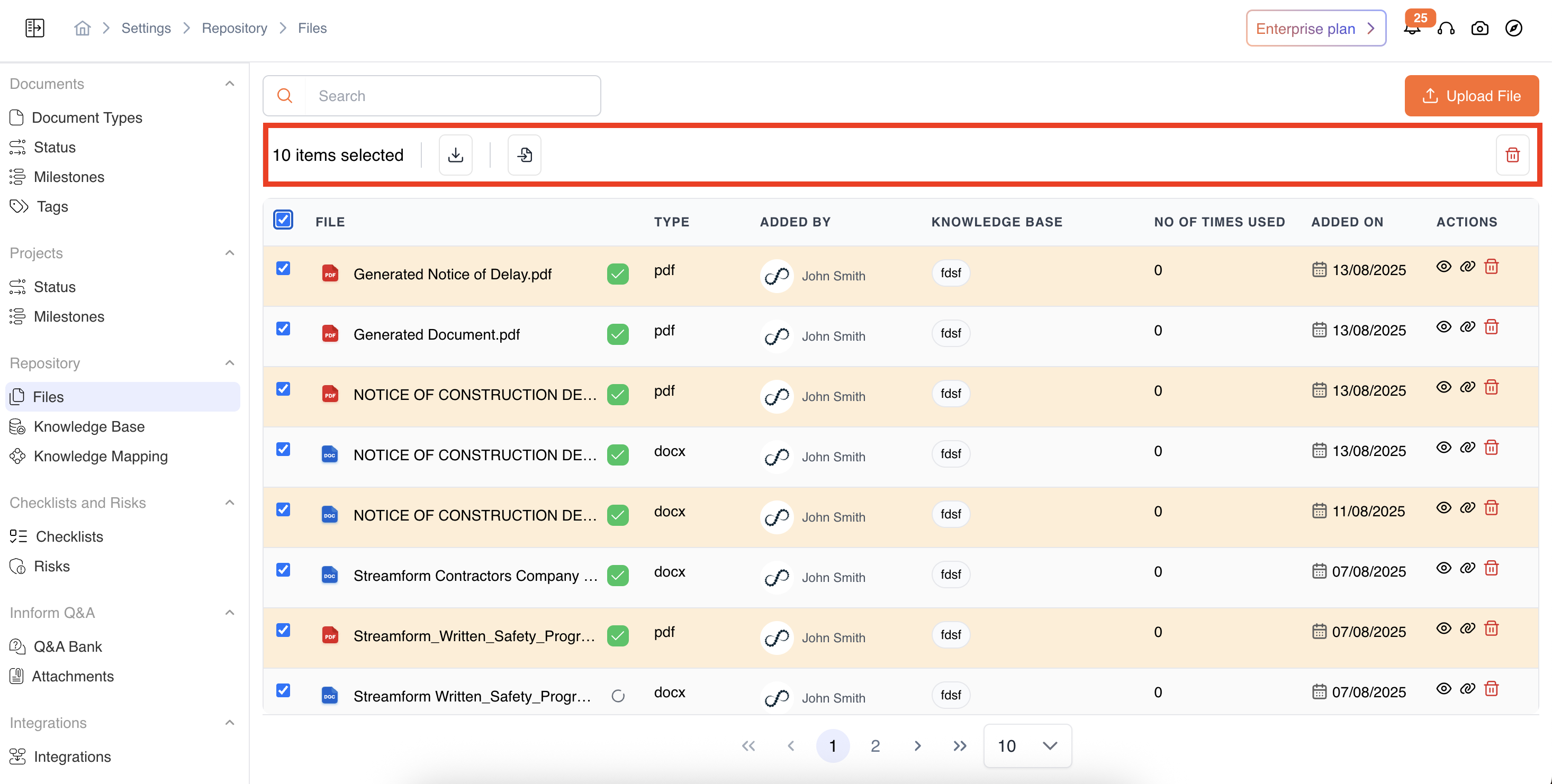
All uploaded files are displayed in a list format under Settings-> Repository-> Files. Each file shows the following metadata:
- File Name
- Type of Document - if it is pdf or docx
- Uploaded By – Who added the file
- Linked Knowledge Base – If the file is associated with a Knowledge Base
- Usage Count – Number of times this file has been referenced
- Date Added – When the file was uploaded
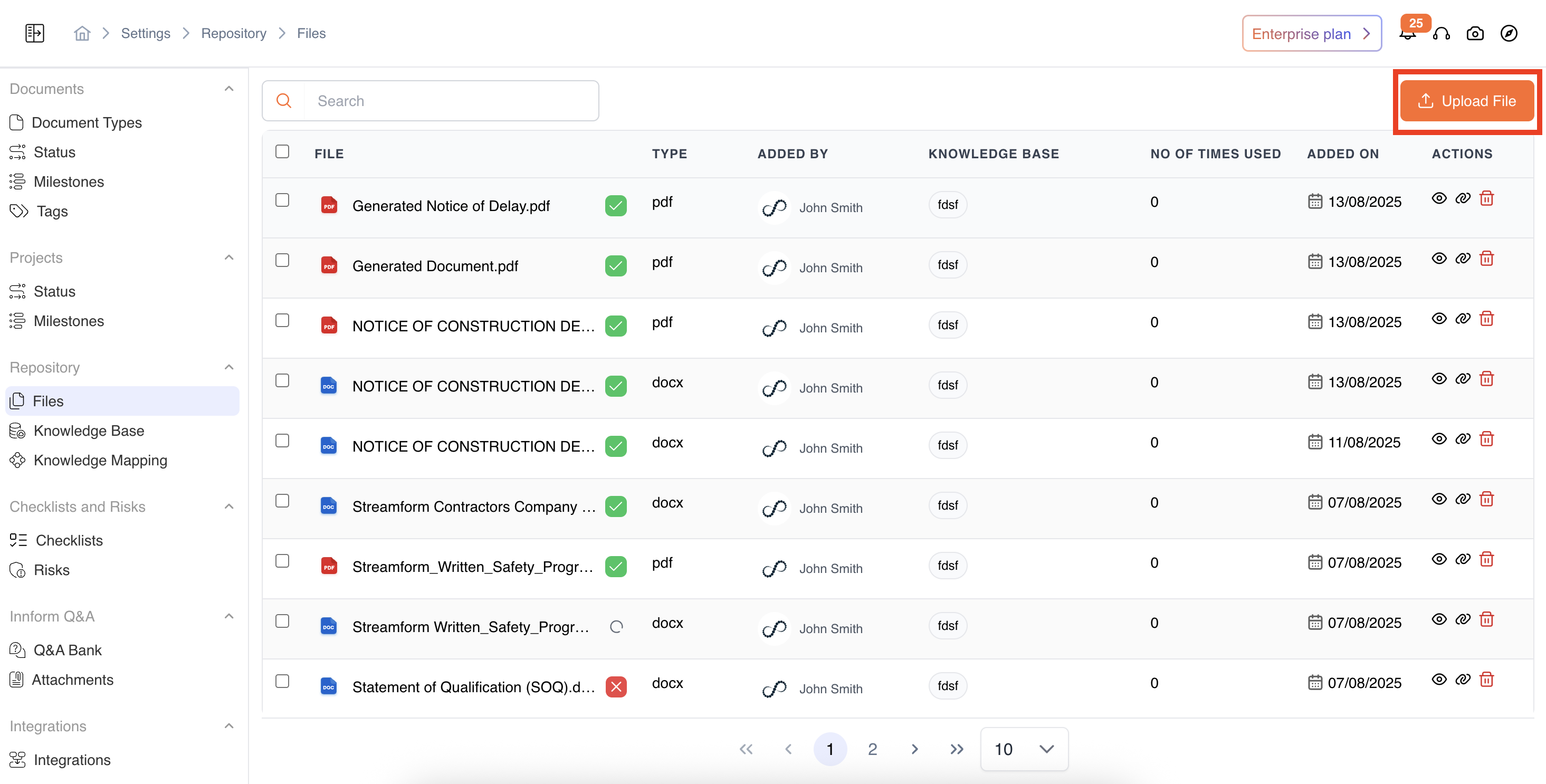
Uploading Files
- Click Upload File.
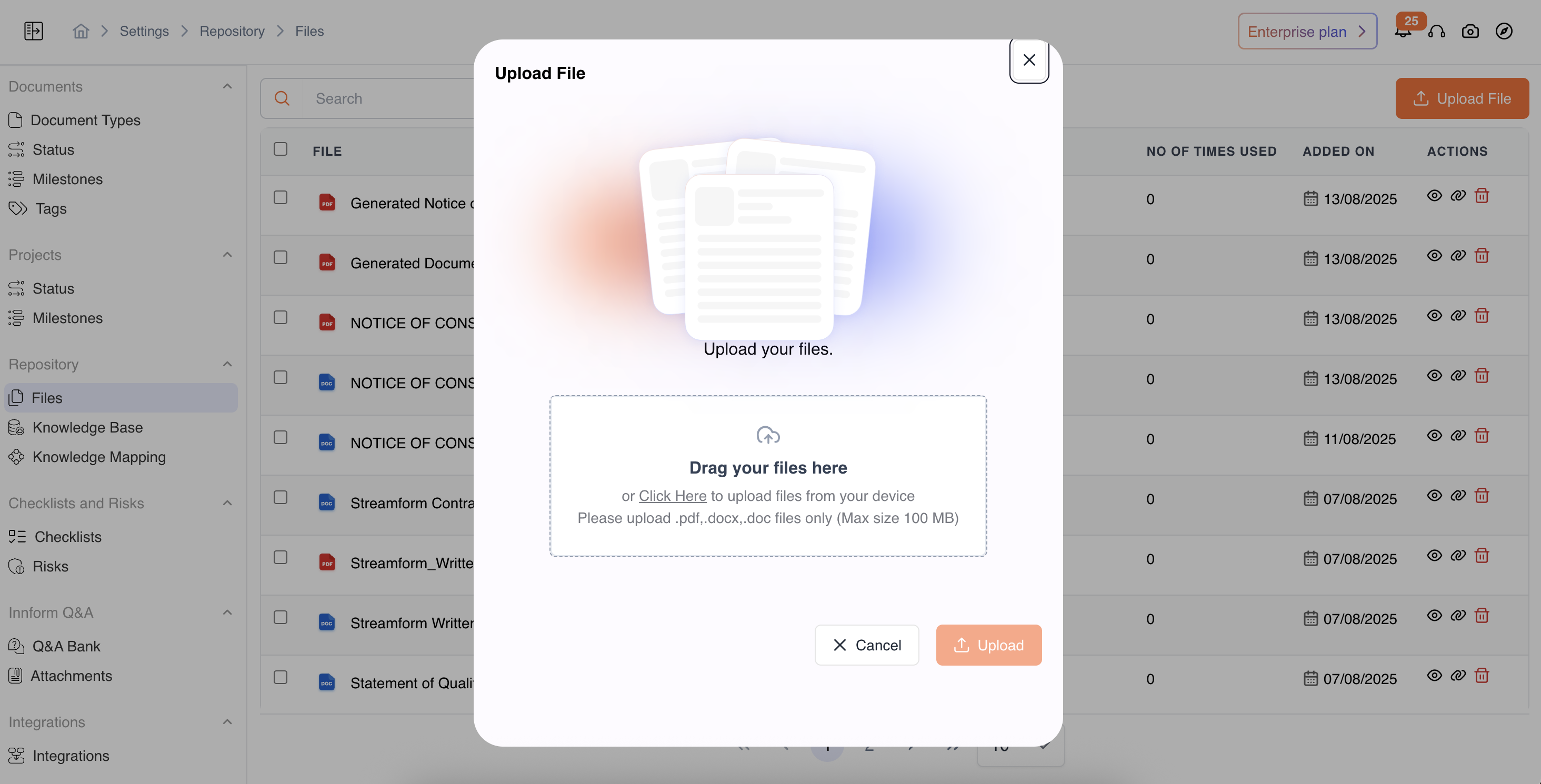
- Select one or multiple documents from your system (PDF or Docx supported)
- Click Upload to start uploading.
- Uploaded files are automatically added to the list and metadata is tracked.
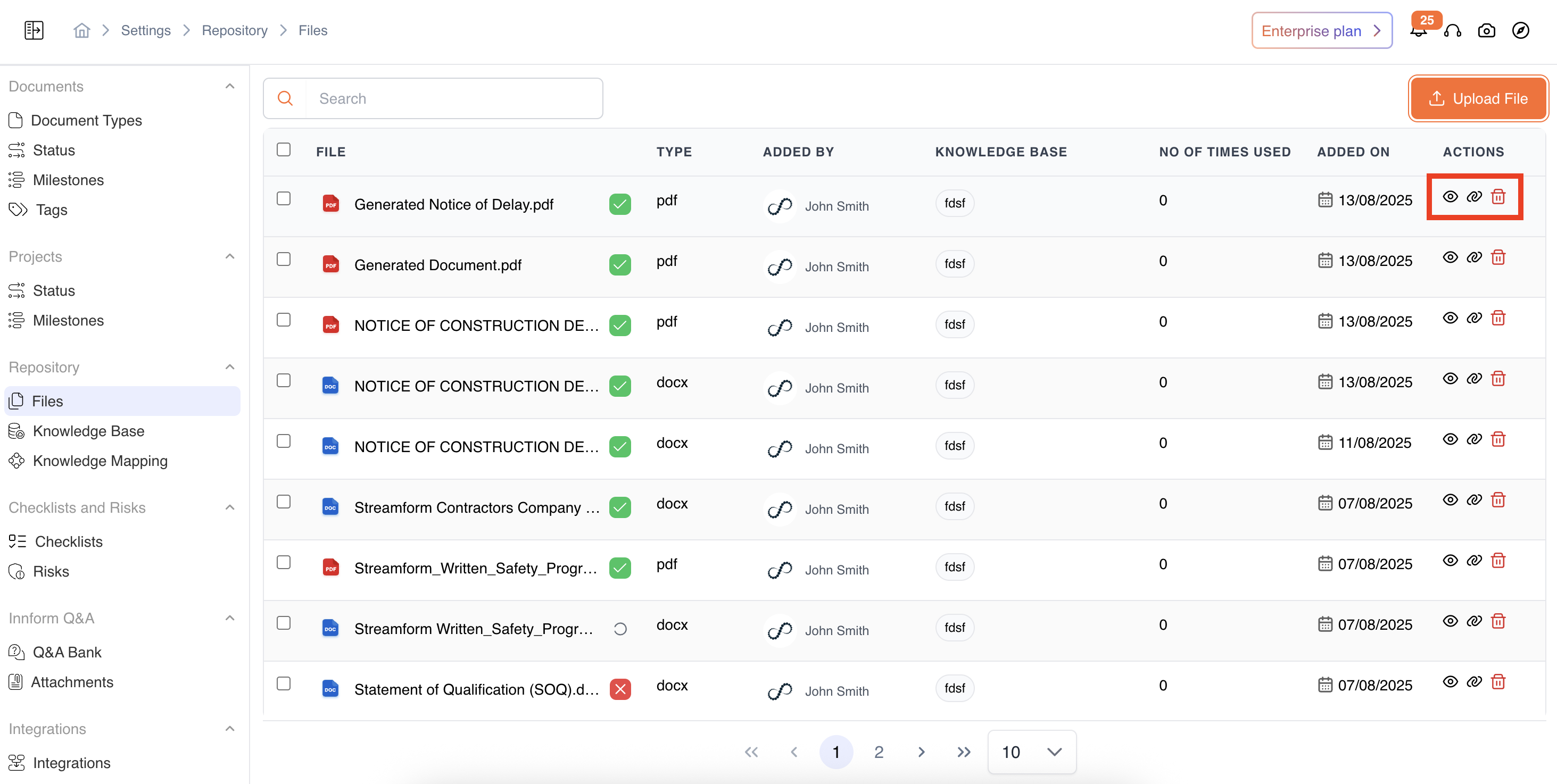
File Actions
For each file, you can perform the following actions:
- View Document – Open the file for review.
- [Link to Knowledge Base]– Associate the file with a relevant Knowledge Base for AI-assisted answering.
- Delete – Remove the file permanently.
Bulk Actions
You can perform actions on multiple files at once:
- Download All – Download selected files in original format.
- Link to Knowledge Base – Associate multiple files with a Knowledge Base in one action.
- Bulk Delete – Remove multiple files at once.
Video Reference - https://app.guidde.com/share/playbooks/kAQT4sDWnRcWqUsiZGSEBL?origin=CLhuhyWU58WFuigCugTh3i3jhGs2
Updated 9 months ago
Did this page help you?