
Status
Statuses help you track the progress of your documents and projects. Documents and projects each have their own set of statuses that you can manage separately.
Document Status
-
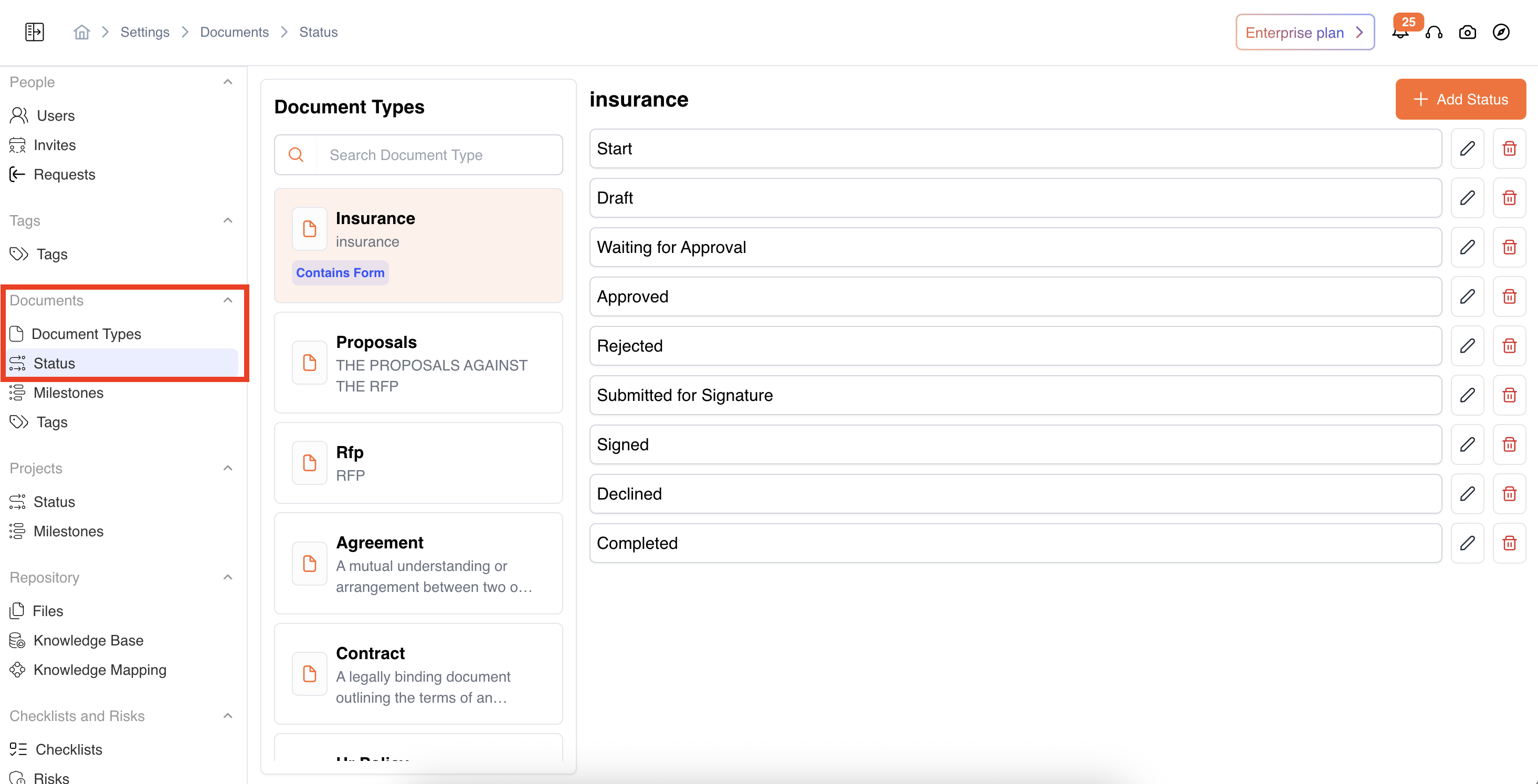
Document statuses can be found under Settings → Documents → Statuses.
-
Default Statuses: The system comes with a few default document statuses for every document type.
-
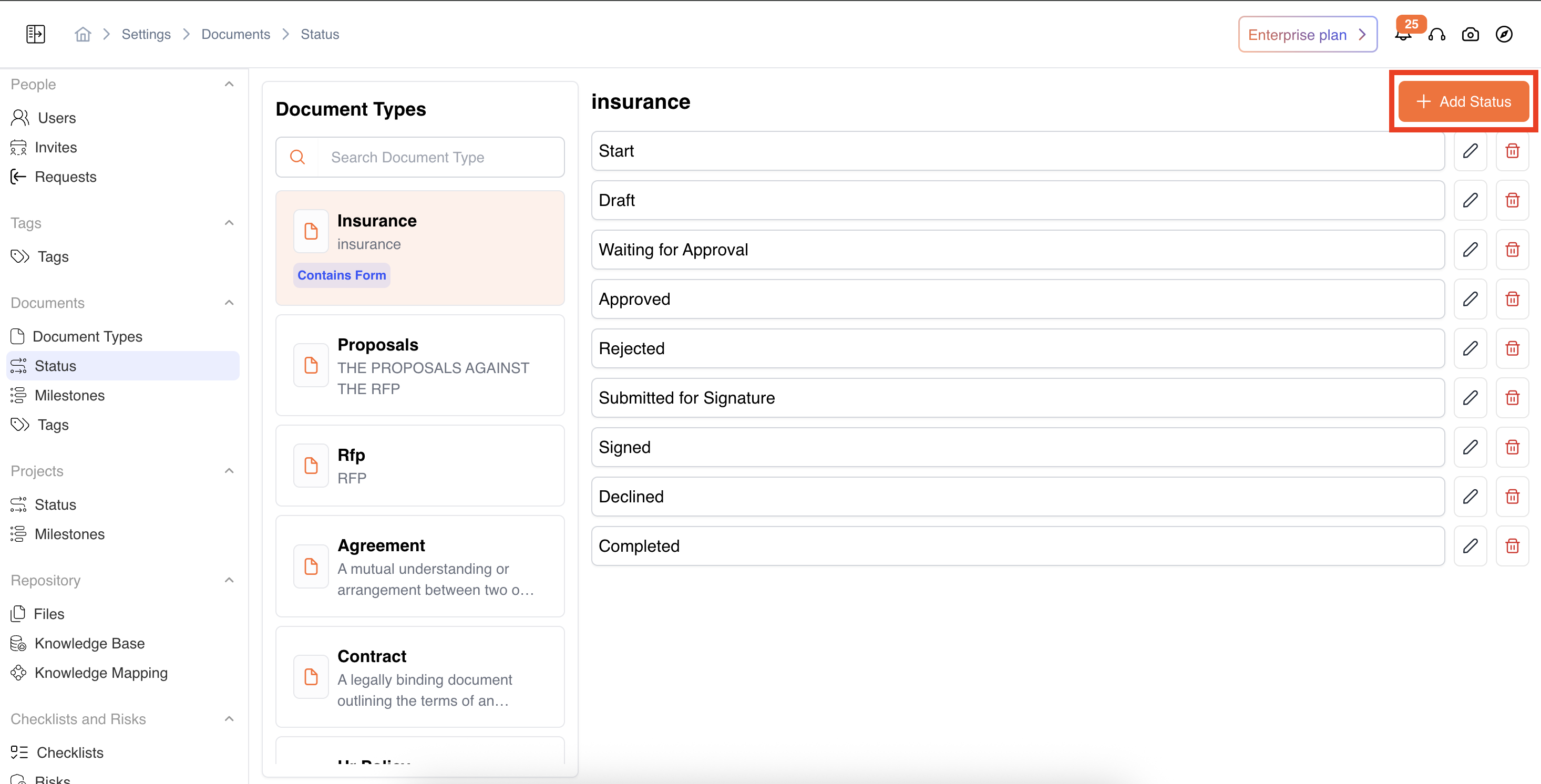
Add New Status:
-
Click on Add New Status against each document type(or similar button).
-
Enter the status name (e.g., “Under Review,” “Approved,” etc.).
-
Save the new status. It will now be available to assign to documents across this workspace
-
-
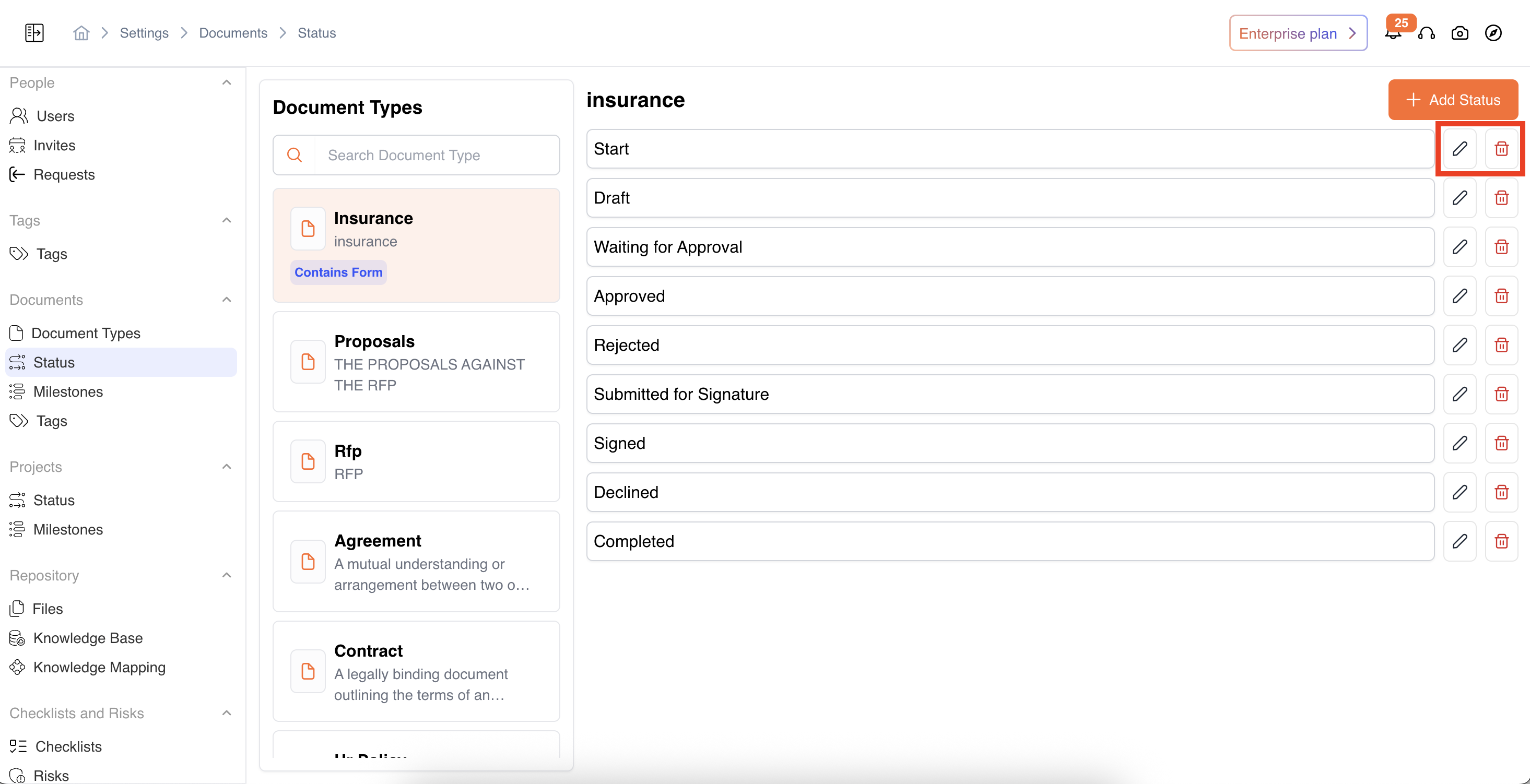
Edit or delete the status. Note: Deleting a status may affect documents currently assigned to it; some systems may require reassigning those documents first.
-
To update a document status, open the document and change the status from inside the form.
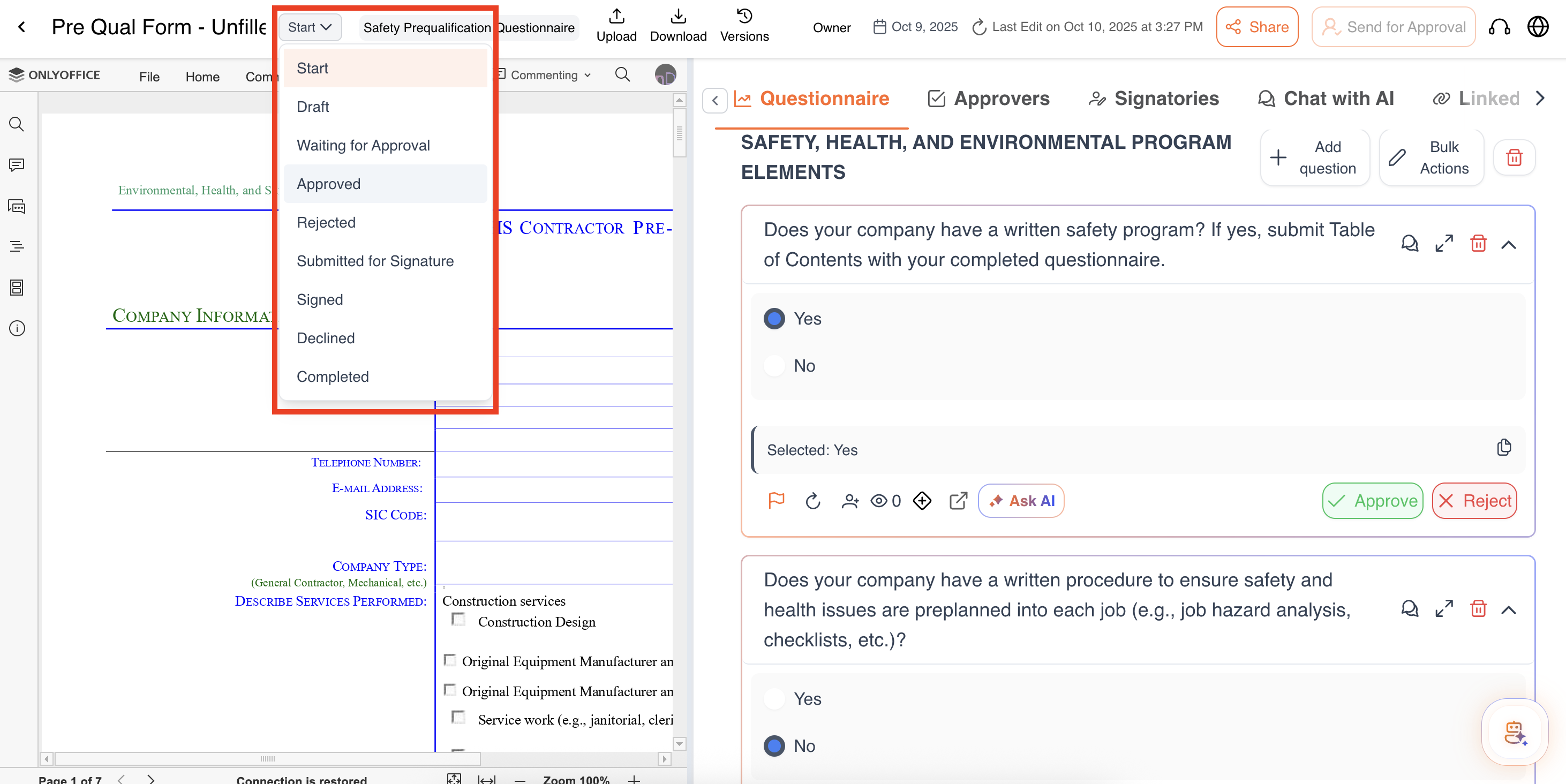
Only users with proper access (document owner, editor, or given Workspace/Project Admin access) can update the status.
Project Status
-
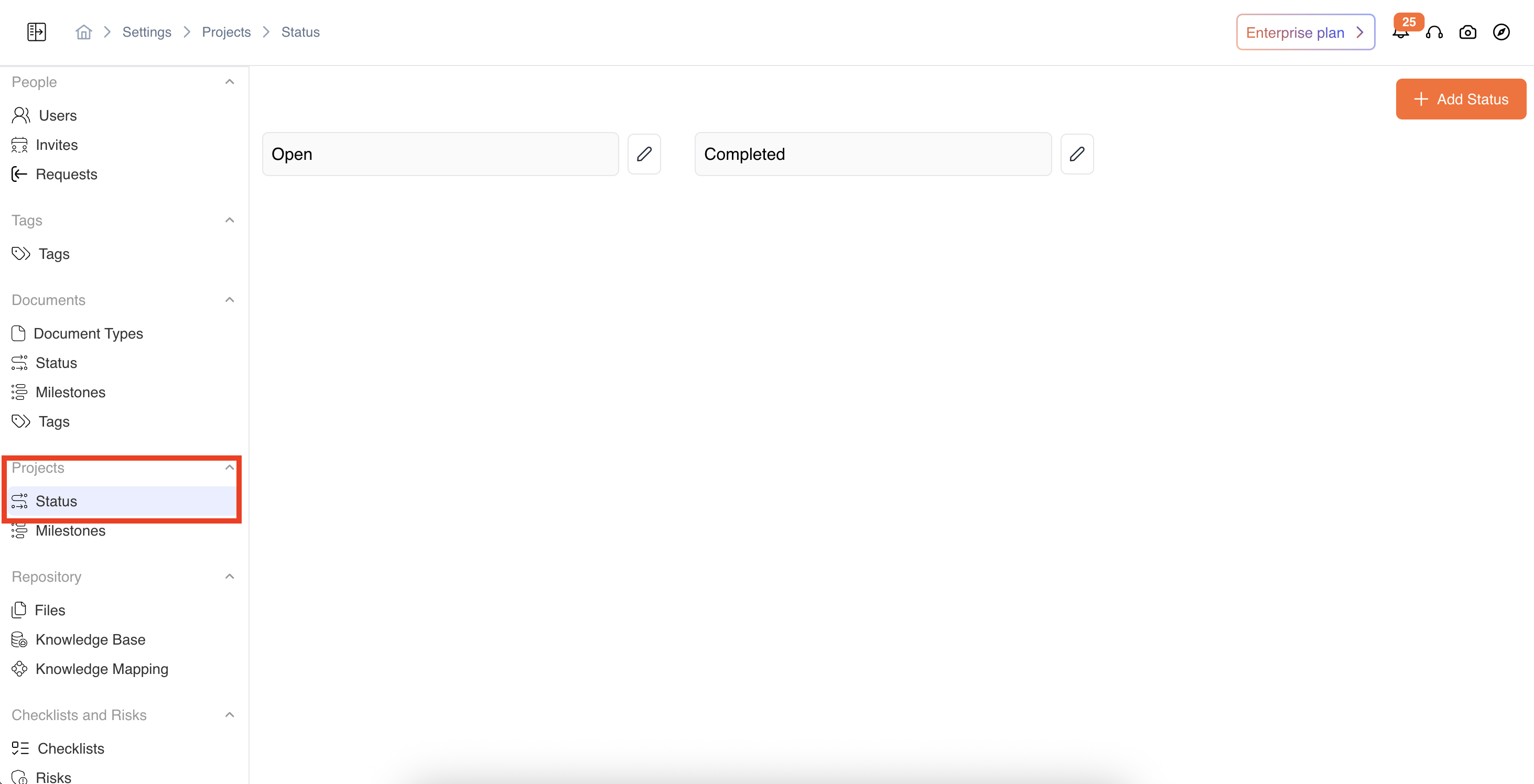
Project statuses can be found under Settings → Projects → Statuses.
-
Default Statuses: The system comes with a few default project statuses.
-
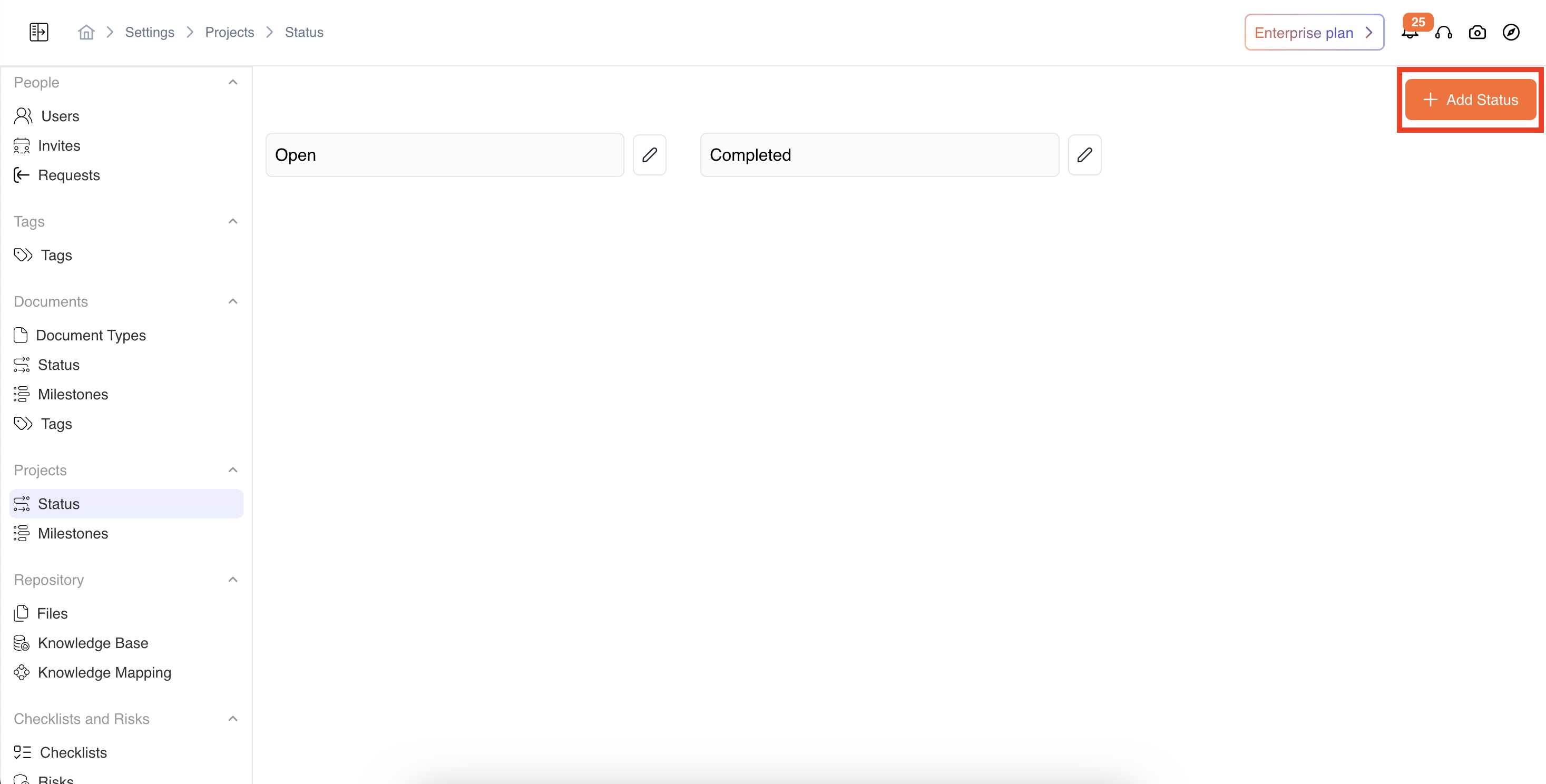
Add New Status:
- Click on Add New Status (or similar button).
- Enter the status name (e.g., “Under Review,” “Approved,” etc.).
- Save the new status. It will now be available to assign to documents across this workspace
-
Edit or delete the status. Note: Deleting a status may affect Projects currently assigned to it; some systems may require reassigning those Projects first.
-
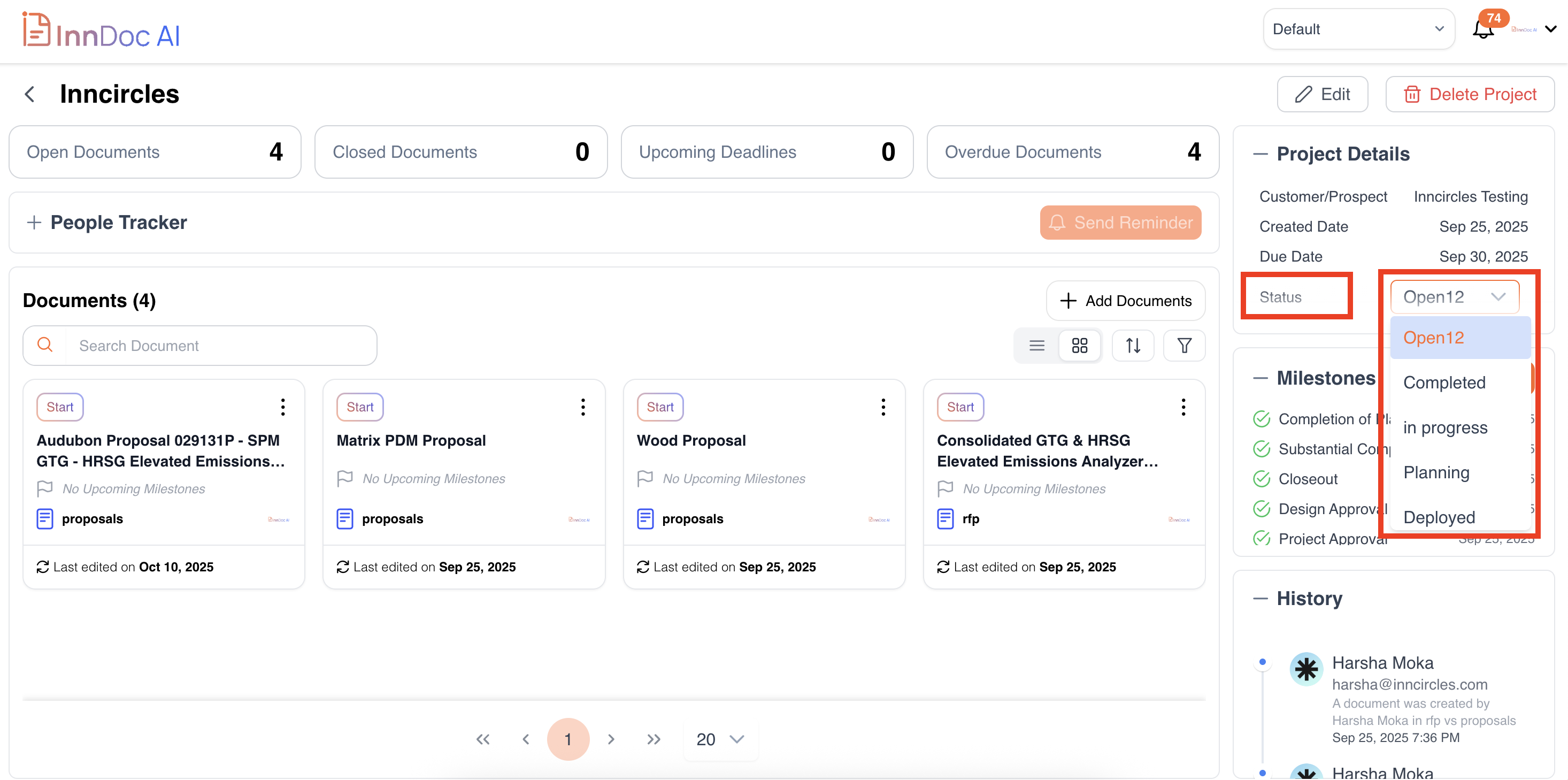
To update a project status, open the project and change the status from inside the project
Video Reference - https://app.guidde.com/share/playbooks/vudRKDLRFymYkP9jnPnLaV?origin=CLhuhyWU58WFuigCugTh3i3jhGs2
Updated 9 months ago