
Compare
The Compare feature in InnDoc AI allows users to efficiently analyze conceptual differences between documents, ensuring accuracy, and consistency.
Selecting documents for comparison
- Users can begin by selecting a document for comparison
- The comparison process can be initiated by navigating to the 'Compare' card within the 'Insights' section of the document. Navigation: Document → Insights → Compare
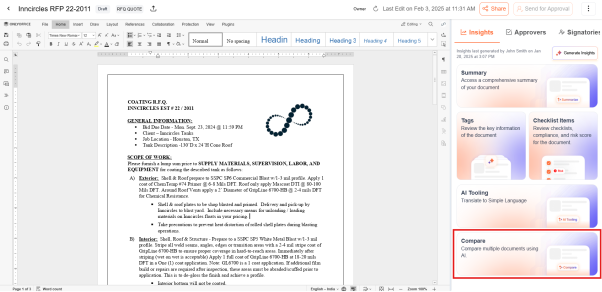
- Click 'New' to select the document to be compared.
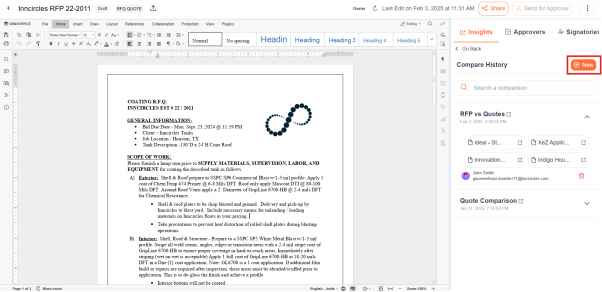
Users can compare the document with:
- Existing documents of the same document type.
- Documents from the repository.
- Previous versions of the document.
- Upload a document from your local system.
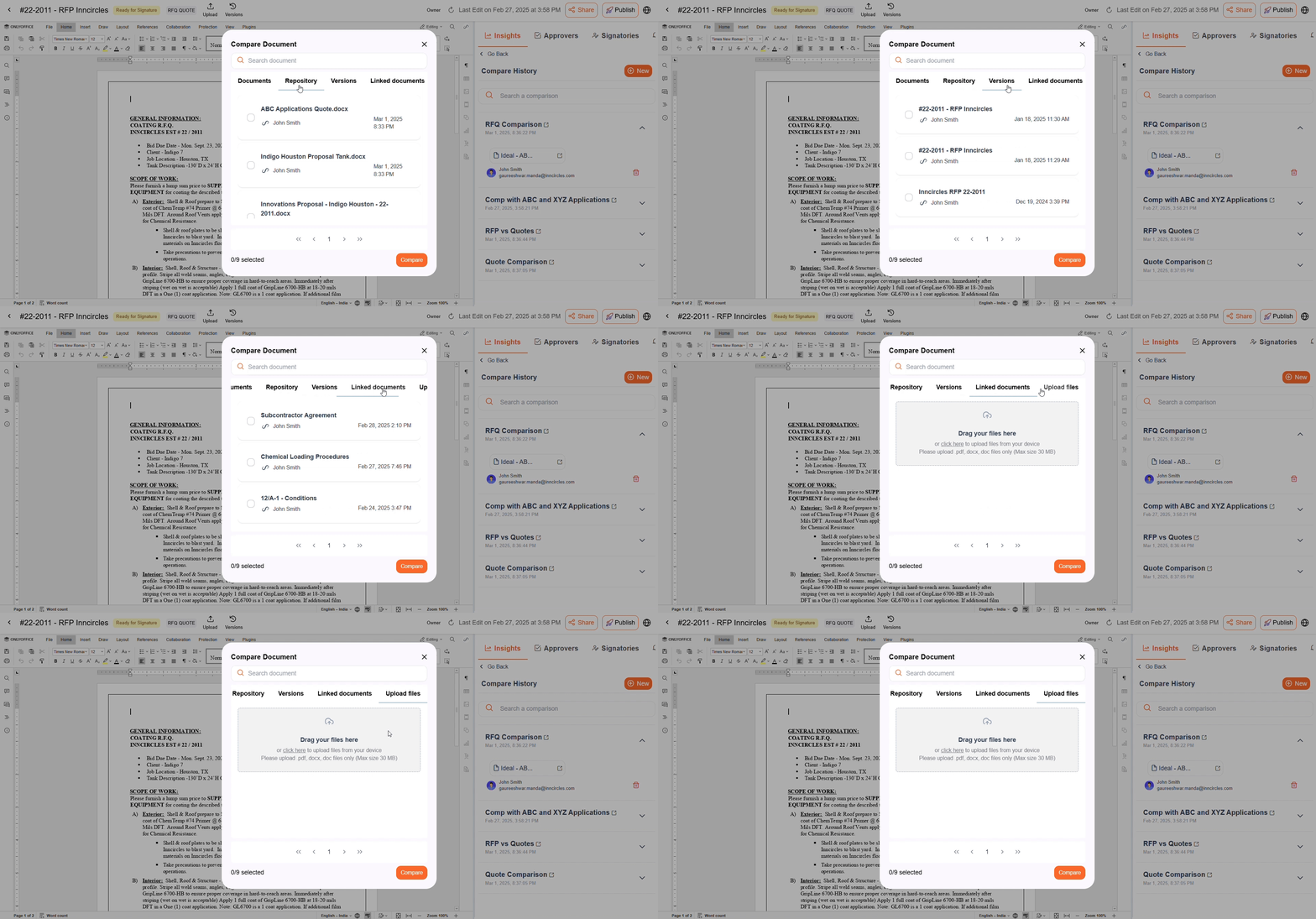
Once a document is selected, InnDoc AI automatically generates comparison results.
Comparison Log & Insights
- Upon generating a comparison, a dedicated comparison log is created.
- The log provides valuable insights, including:
-
Key Performance Indicators: Metrics for evaluating critical changes.
-
InnDoc AI Chatbot: Assists throughout the comparison process by generating relevant queries and responses
-
All Documents: View all documents added to this comparison.
-
Reports
- Compliance Matrix: Detailed KPI scoring with evidence mapping for each item.
- Executive Summary: High-level analysis results and actionable recommendations.
- Audit Logs: Detailed event history for monitoring, tracking changes, and review.
-
Comments: Section for collaborative feedback, discussions, and notes related to documents.
-
Adding multiple documents for comparison
-
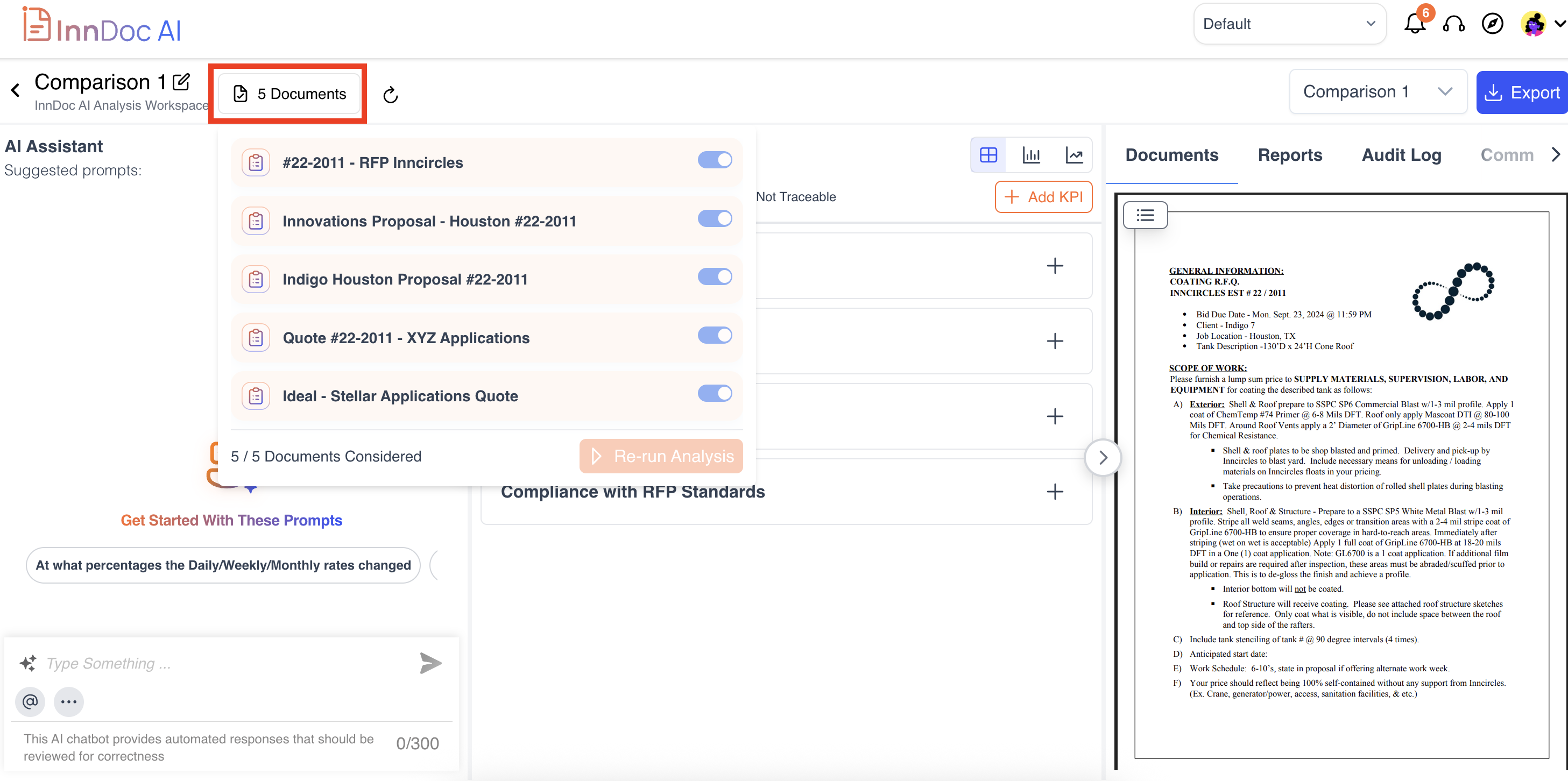
To exclude any documents you can toggle the button off by clicking on the Documents tab and click on re-run analysis
Key Performance Indicators
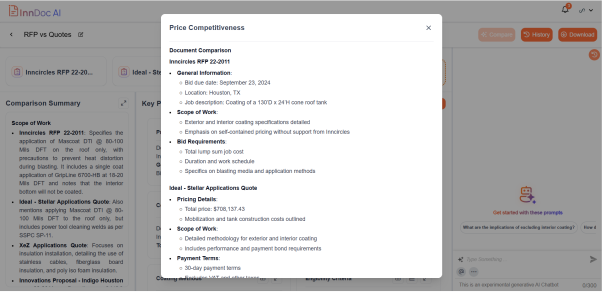
- Users can view standard KPIs, which highlight significant changes and trends.
- KPIs are displayed in an expandable window for detailed analysis and can be presented in tabular and image formats for better understanding.
To configure Key Performance Indicators based on requirements - Custom Key Performance Indicators
InnDoc AI Compare Chatbot
-
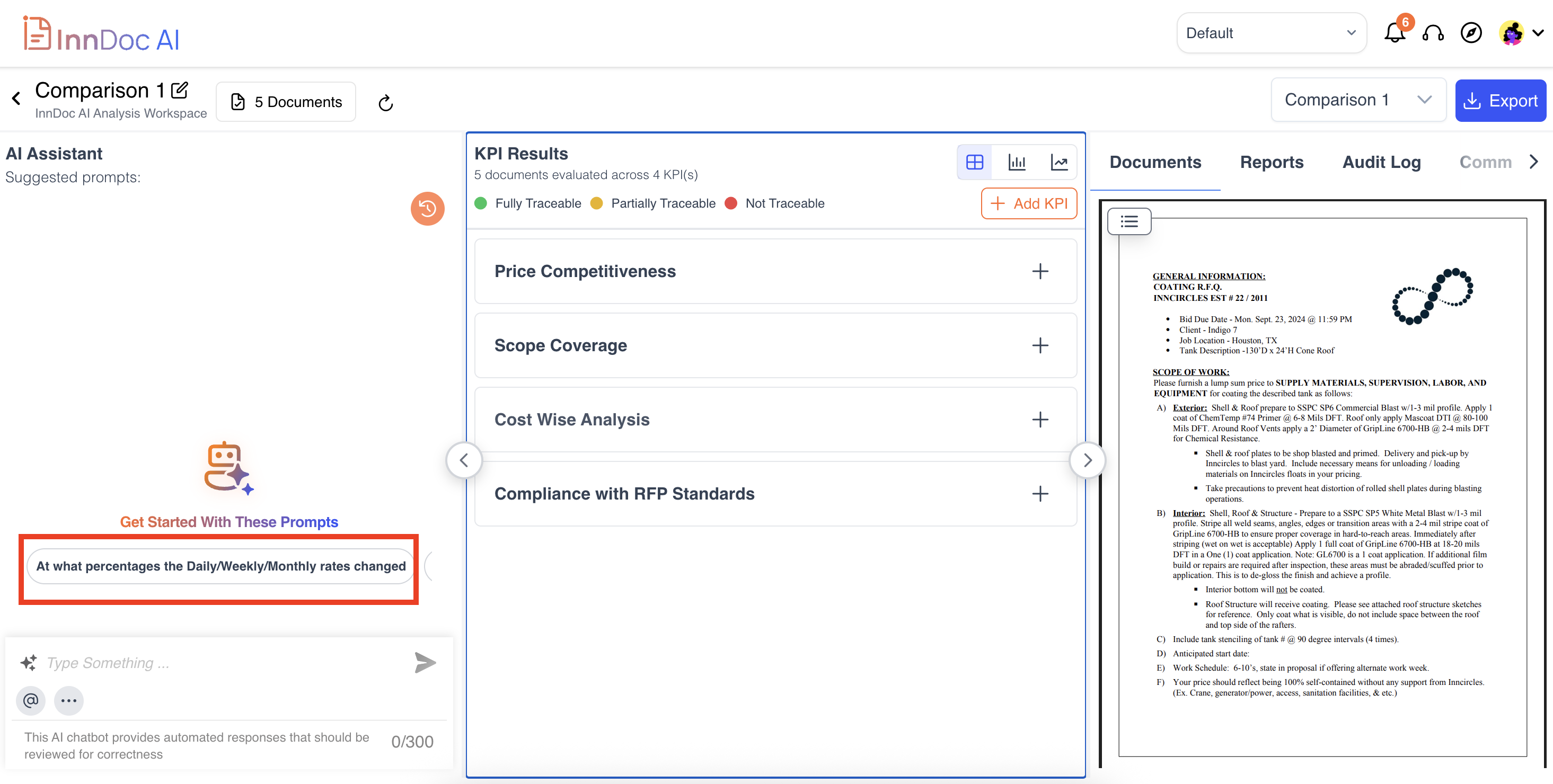
The InnDoc AI Chatbot intelligently generates dynamic queries based on document context.
-
These AI-suggested questions allow users to quickly extract critical information without manually searching through the document.
Chat Sources
-
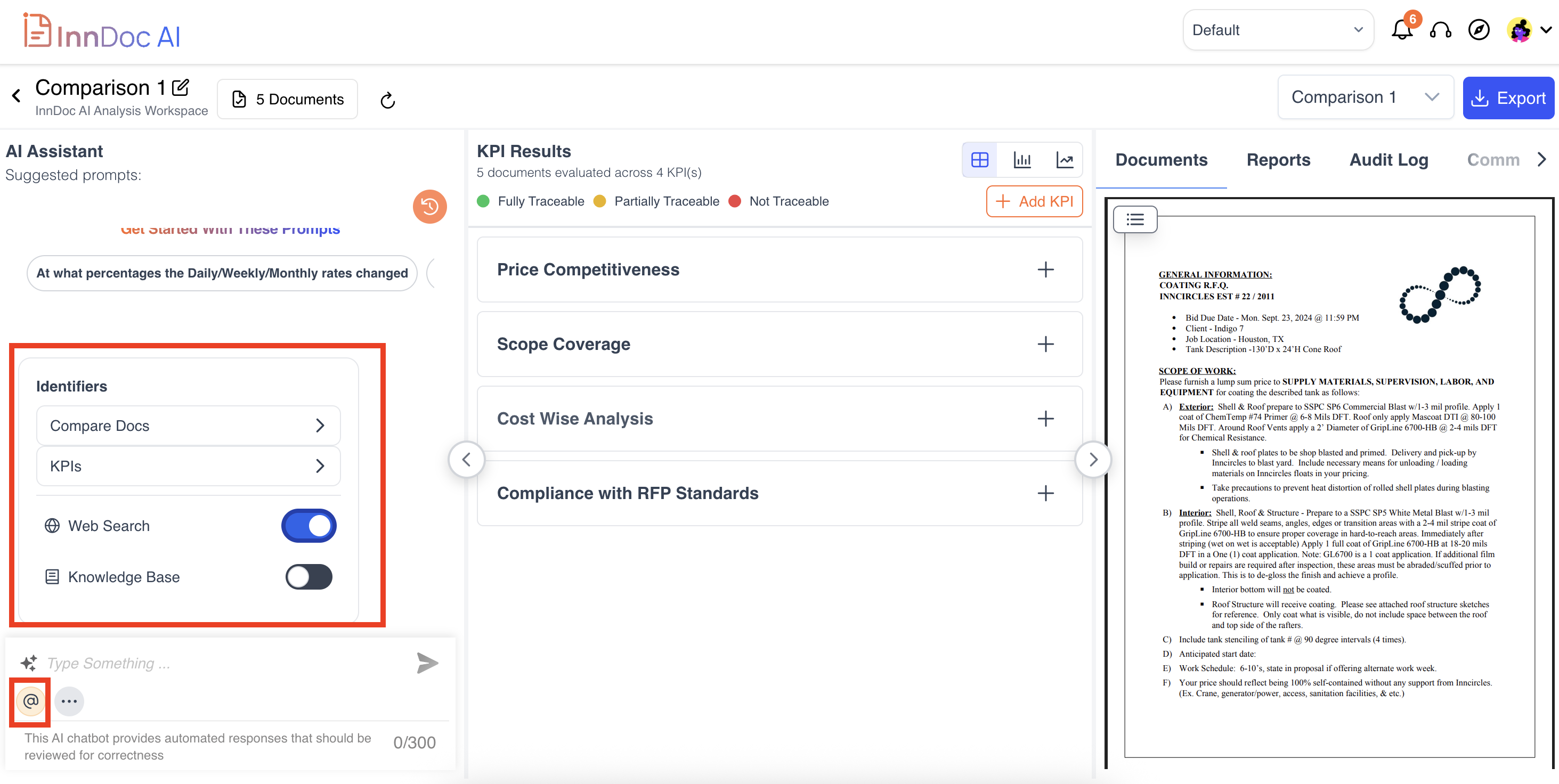
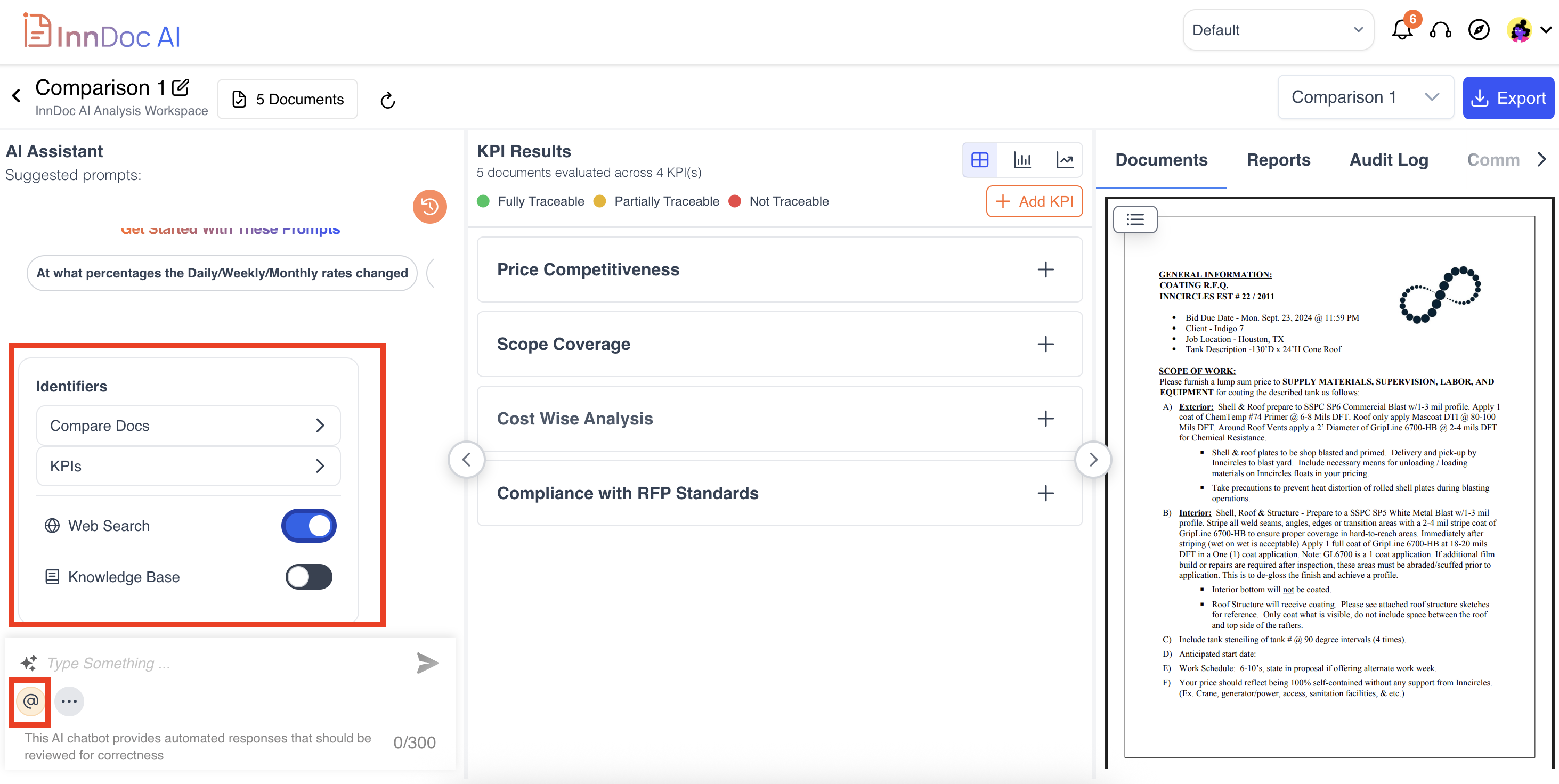
The chat search enables users to quickly find relevant information by leveraging multiple sources:
-
Web Search & Knowledge Base: Retrieve insights from both your organization’s knowledge base and the web.
-
Document Comparison: Access and compare all uploaded documents to find answers or verify information.
-
KPI Insights: Use KPIs from previous analyses or documents to support data-driven queries.
-
Chat History
-
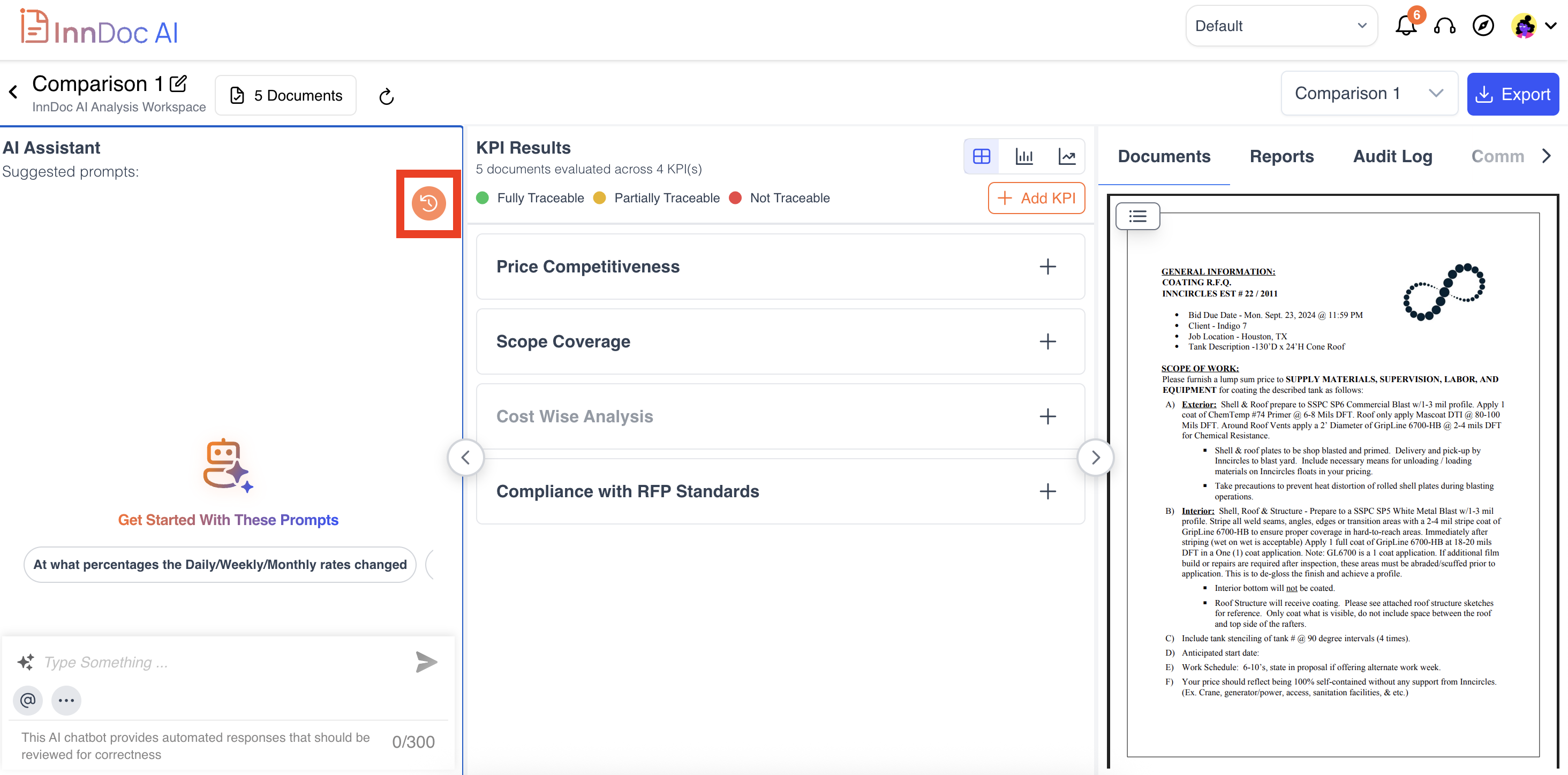
The "Comparison Chat History" feature enables users to track and revisit past conversations with the chatbot and can be accessed from the “History” Icon at the top right corner of the Chatbot
-
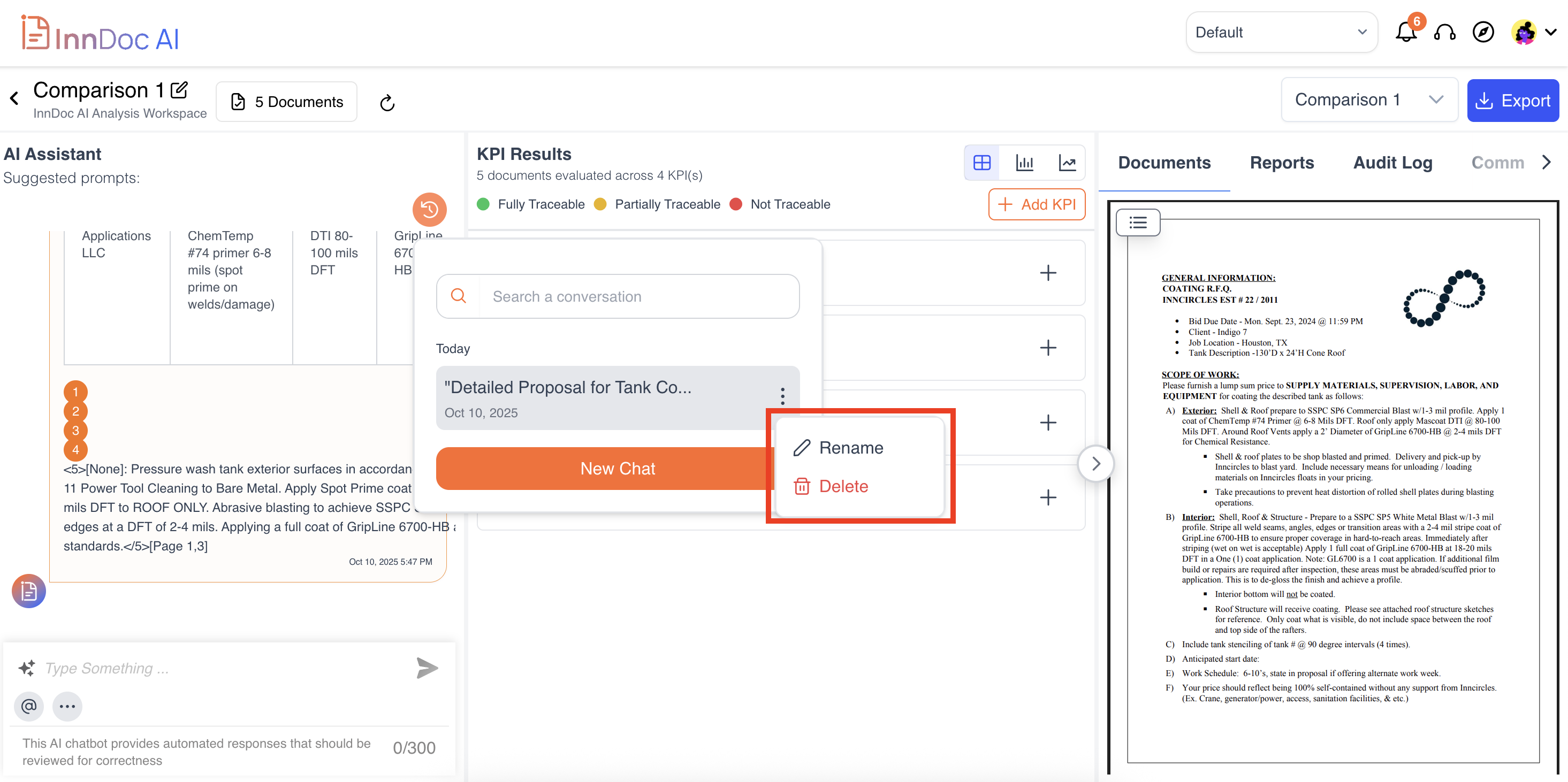
Users can rename chat titles to organize discussions based on specific queries or topics for better accessibility
-
Comparison History
-
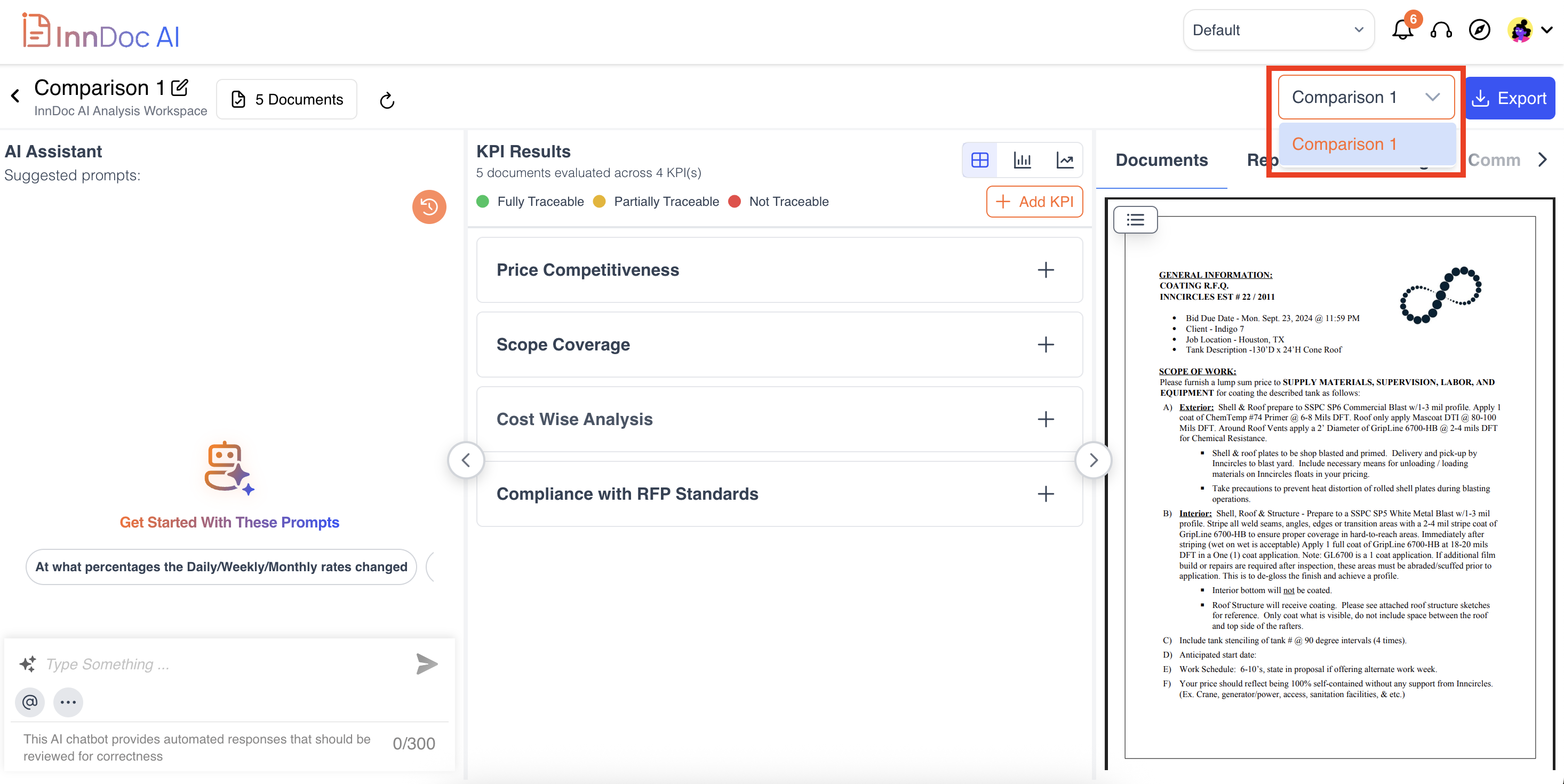
The Compare History feature provides access to previous comparison logs. Navigation: Document → Insights → Compare → Comparison Log → History
Exporting comparison results
-
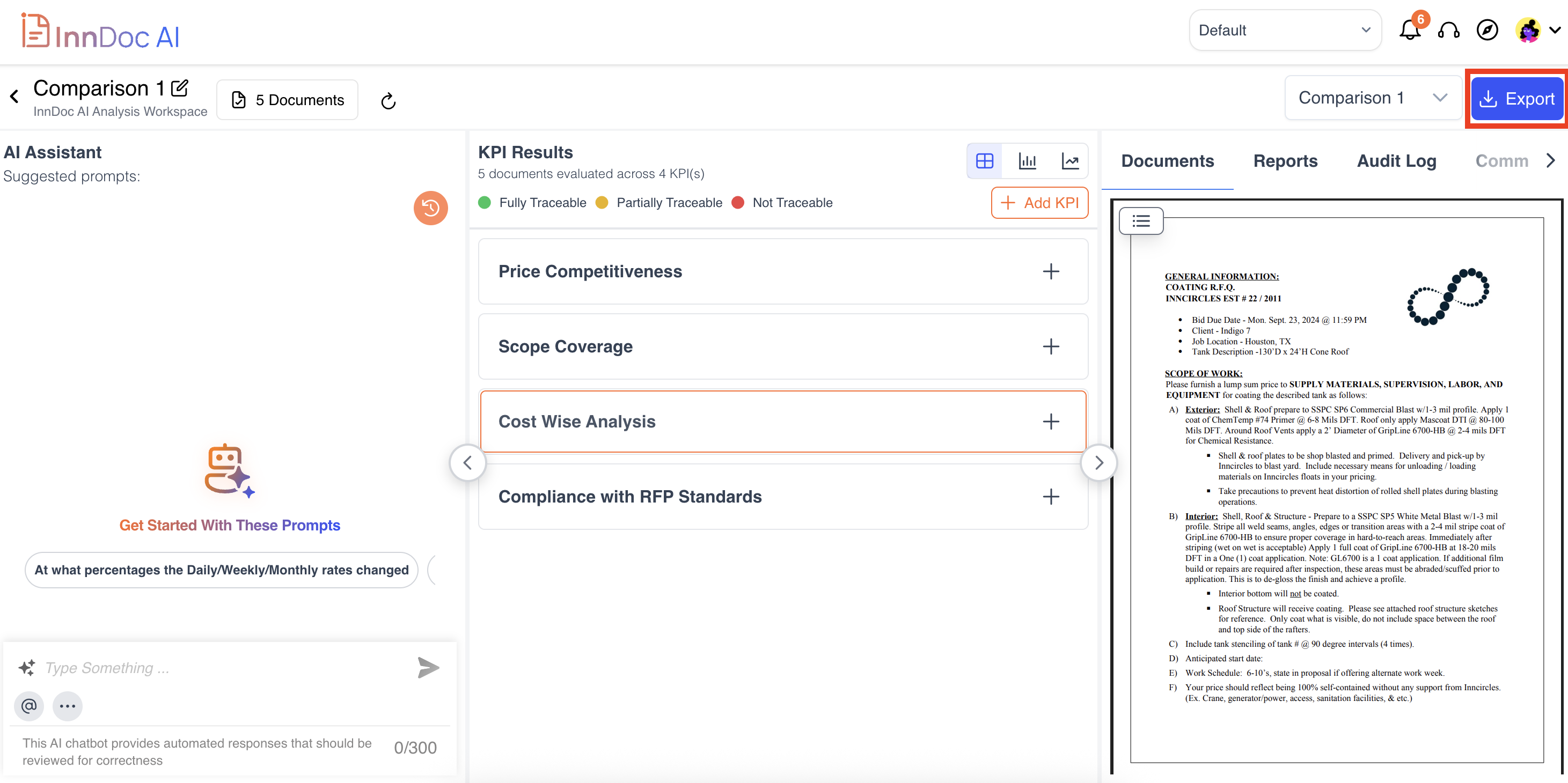
Users can download the generated comparison log by clicking 'Download'. Navigation: Document → Insights → Compare → Comparison Log → Export
-
The insights are provided in a well-structured PDF format for easy review and sharing.
Video Reference - https://app.guidde.com/share/playbooks/9Qqifmy8C2Doomn1nhSqzk?origin=CLhuhyWU58WFuigCugTh3i3jhGs2
Updated 9 months ago