
Signatories
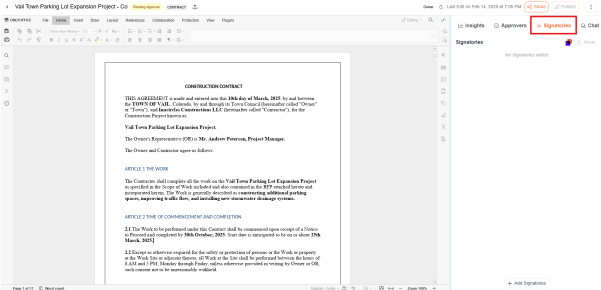
- The Signatories in InnDoc AI enables users to define and manage the document signing process by assigning authorized signatories.
- This ensures that documents receive the necessary accountability and legally binding signatures from relevant stakeholders.
Users can conveniently access this feature by navigating to the Signatories tab.
Adding Signatories
- Users can allocate signatories for a document by clicking on the "Add Signatories" button.
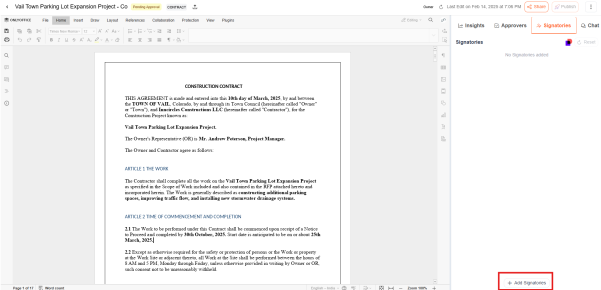
- Signatories can be internal members (within the organization) or external users (such as clients, vendors, or third-party stakeholders).
- Once signatories are added, clicking "Save" registers them for the document.
Sending for Signatures
- Once the document is finalized and approved, users can initiate the signature process by clicking on "Publish".

- The document is then forwarded to the assigned signatories for digital signing.
Modifying the Signing workflow
- Before sending a document for signature, users can modify the signatory list if required. By clicking "Reset," they can adjust or remove signatories to ensure accuracy.

Integration with third-party signing tools
- InnDoc AI supports integrations with industry-standard e-signature tools, including:
- DocuSign - Docusign Setup
- Adobe Sign - Adobe Sign Setup
These integrations ensure a secure, legally compliant, and streamlined document signing process.
Video Reference - https://app.guidde.com/share/playbooks/szWcaQ8qo7PeAZXbgkXWuT?origin=CLhuhyWU58WFuigCugTh3i3jhGs2
Updated 9 months ago
Did this page help you?