
Integrations - Docusign
Docusign Integration
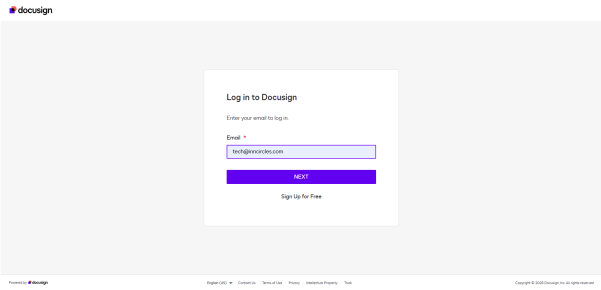
Step 1: Open and set the Docusign settings through “https://account.docusign.com/” This is a one-time step and only admins need to log in.
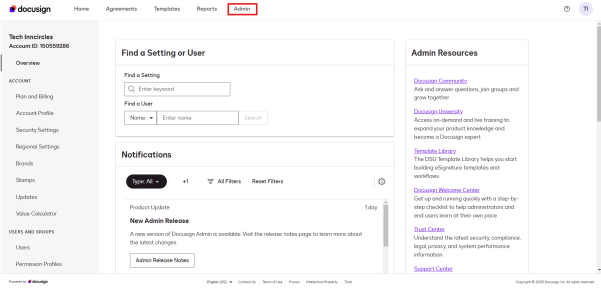
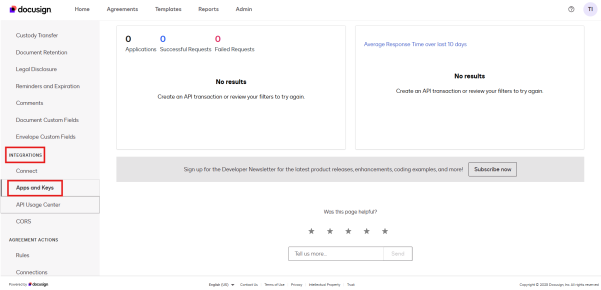
Step 2: Upon Login with valid credentials, Navigate to “Admin” section to access “Apps and Keys” through ”Integrations”.
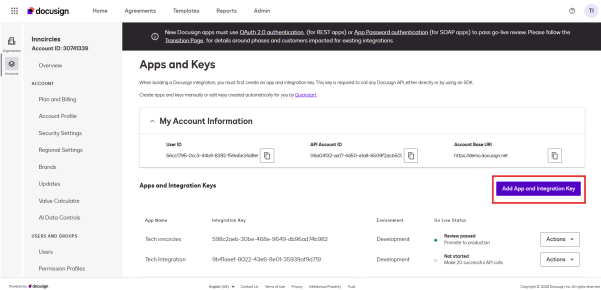
Step 3: Click on the “Add App and Integration Key” button and enter the”App Name” and then after, Click on “Create App”.
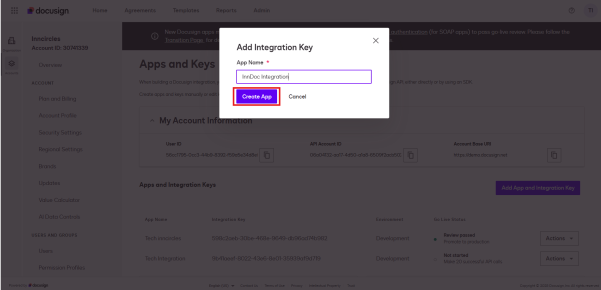
Step 4: Once the App is added, open the application created to add “Redirect URL” and “Secret Key”
- Click on “Add URL”, to add Redirect URL = https://doc.inncircles.ai/home/integrations/docu-sign
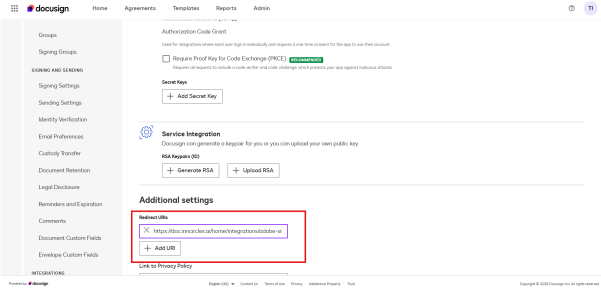
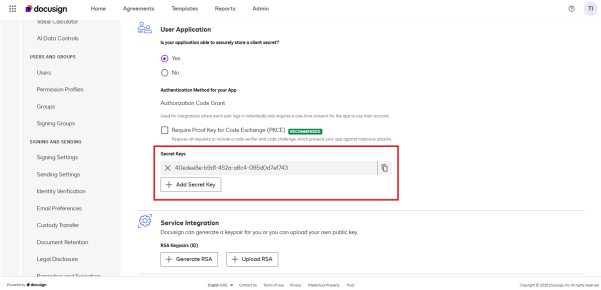
- Click on “Add Secret Key”, to generate secret key
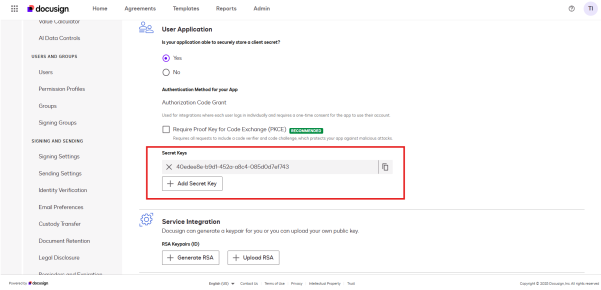
- Note: Take note of the “Application ID” and “Secret Key” for further use
Step 5: Once an App is created, Navigate to “Connect” in “Integrations”
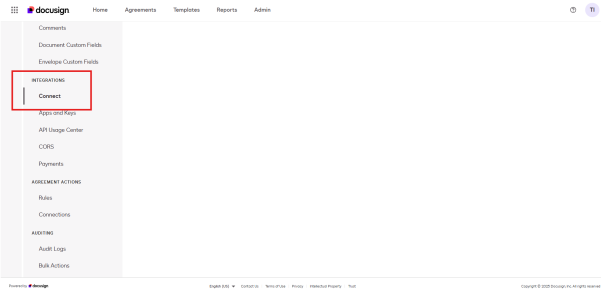
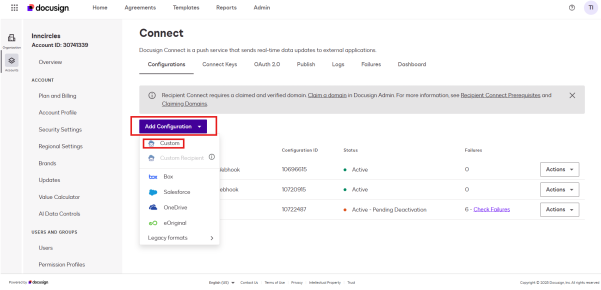
Step 6: Then after, click on “Add Configuration" and select “Custom Configuration”
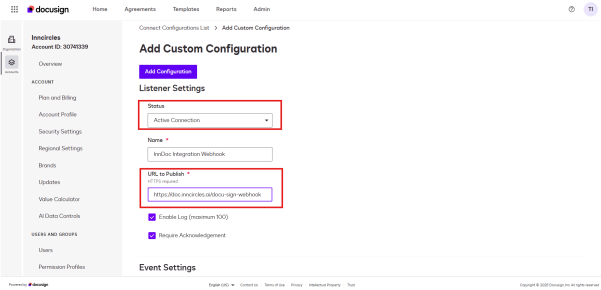
Step 7: Select “Active Connect” in Status field and provide “https://doc.inncircles.ai/docu-sign-webhook “ in the “URL to Publish” field
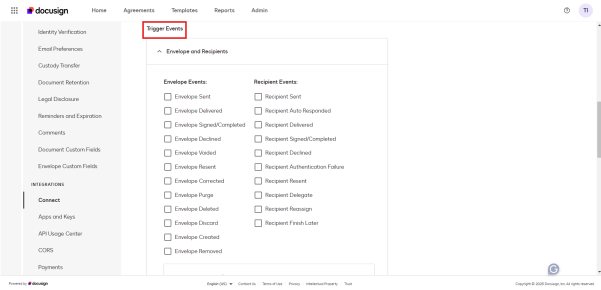
Step 8: In the Connect tab, Scroll down to find “Trigger Events”
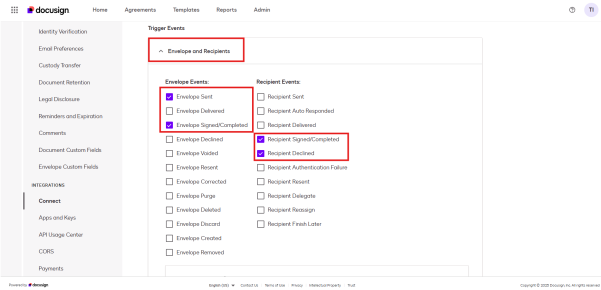
Step 9: Select the following scopes:
-
In Envelope and Recipients dropdown
- Envelope Sent
- Envelope Signed/Completed
- Recipient Signed/Completed
- Recipient Declined
-
In the “Include Data” dropdown within “Envelope and Recipients” dropdown
- Documents
- Recipients
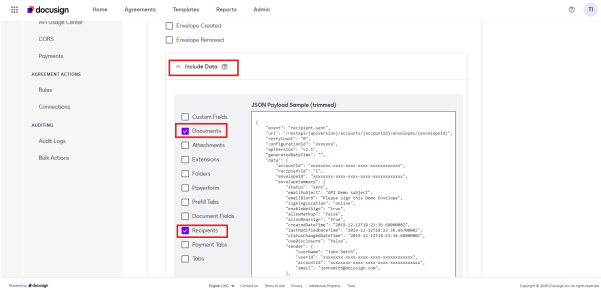
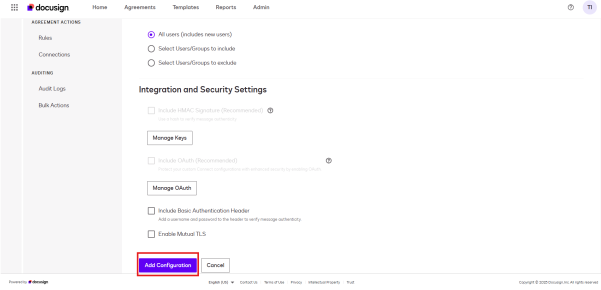
Step 10: Select “Add Configuration” for registering the connection
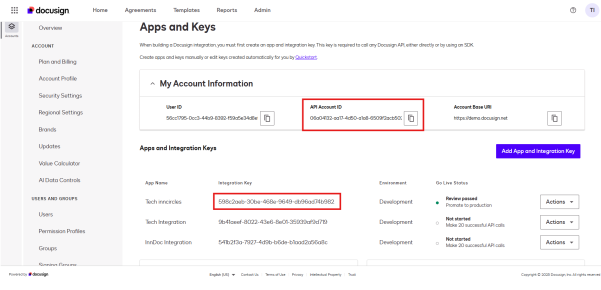
Step 11: Open the application created and take note of the values:
- API Account ID
- Integration Key
- Client Secrets
Step 12: Login on https://doc.inncircles.ai/login with the respective credentials.
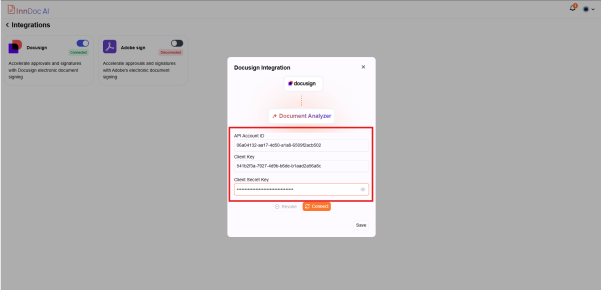
- Navigate to Integrations (Home Screen) → Docusign
- Provide the respective values:
- API Account ID = API Account ID
- Client Key = Integration Key
- Client Secret Key = Secret Key
Step 13: After clicking on save changes, click on the ‘Connect’ button to enable Adobe Sign for LOR.
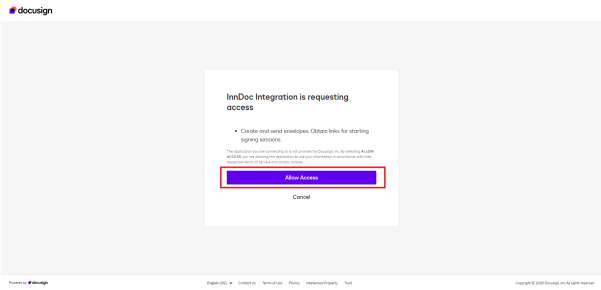
Step 14: You will be now redirected to the Acrobat Sign-in page. Login and click on ‘Allow Access’. InnDoc AI is now successfully integrated with Docusign.
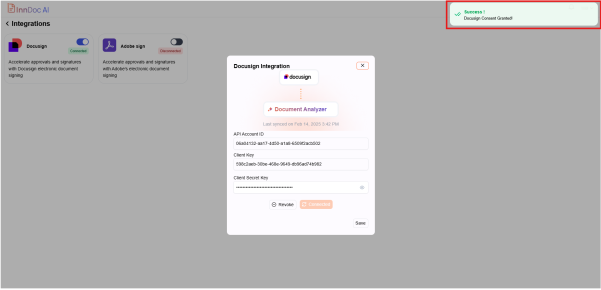
Step 15: Once allowed for access, users will be redirected to InnDoc AI confirming the grant of consent.
Video Reference - https://app.guidde.com/share/playbooks/31kFsHiQTtZrwCvKhVQxZM?origin=CLhuhyWU58WFuigCugTh3i3jhGs2
Updated 9 months ago