
Managing Workspaces
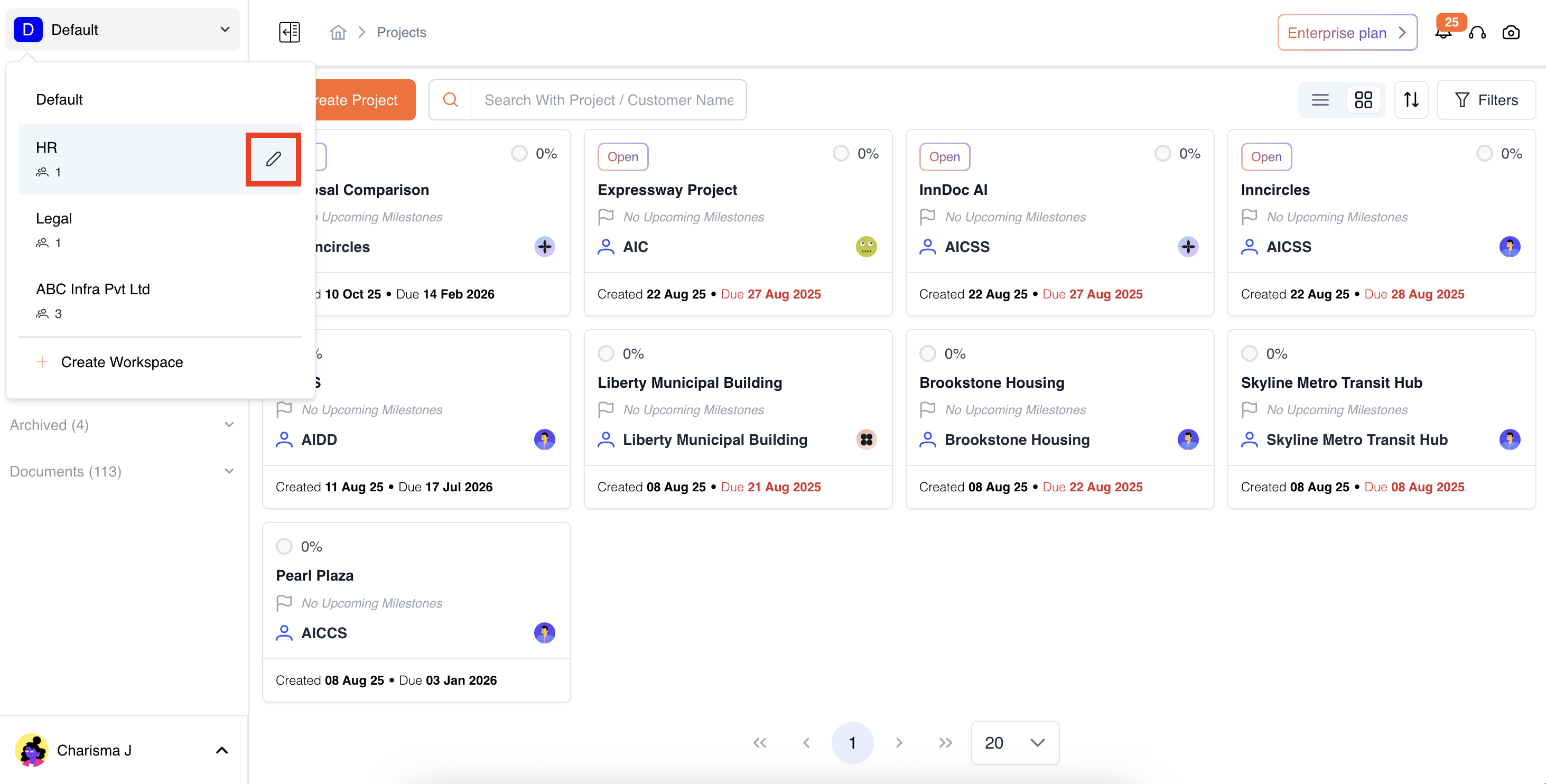
To rename or update a workspace:
-
Go to Workspaces from the top navigation.
-
Select the workspace you want to edit.
-
Click Edit Workspace icon
-
- Name — change the workspace name.
- Description — add or edit a short summary of the workspace.
- Color Tag — choose a new color for quick identification.
- Team Members — add, remove, or update member roles and permissions.
-
Click Save Changes to apply updates instantly.
Switch Between Workspaces
Use the Workspace Switcher in the top navigation to move between workspaces.
- You’ll see a list of all workspaces you belong to.
- Click on a workspace name to instantly switch context (projects, documents, members).
💡 Tip: Recently used workspaces appear at the top for quick access.
🟡 Permissions:
Super Admins and Org Admins → Can edit all workspaces until and unless they have been added as a workspace viewer, commentator or editor to that specific workspace.
Workspace Admins → Can edit only their assigned workspace.
Updated 11 months ago
Did this page help you?